
If you have reached this article, there is no need to labor the definition or uses of S3. Straight to the point: how to connect to an S3 service
To connect to the S3 service from your computer you need the connection details and a client application
Connection specifications
S3 service connection parameters include:
- Access Key
- Secret Key
- REST Endpoint
To obtain these three parameters, contact the provider you bought the service from, or check its documentation for where to find them
S3 connection software on your computer
There are many desktop applications for connecting to S3, both free and paid. They differ in features, of course, but they share the same basics: connecting, creating buckets, and uploading/downloading files between your computer and S3
In this article we will look at the free edition of S3 Browser.
S3 Browser download link: https://s3browser.com/download/s3browser-10-8-1.exe
Install S3 Browser software
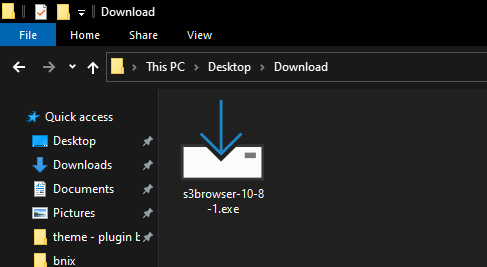
First, install it (after downloading from the link above). Double-click the file you just downloaded.
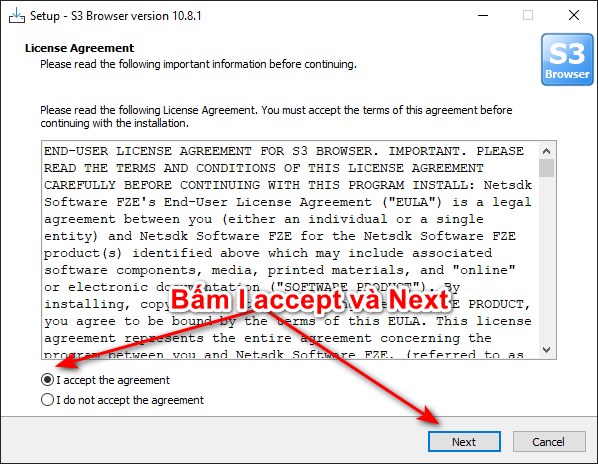
Then click I Accept and click Next until you see the Finish button
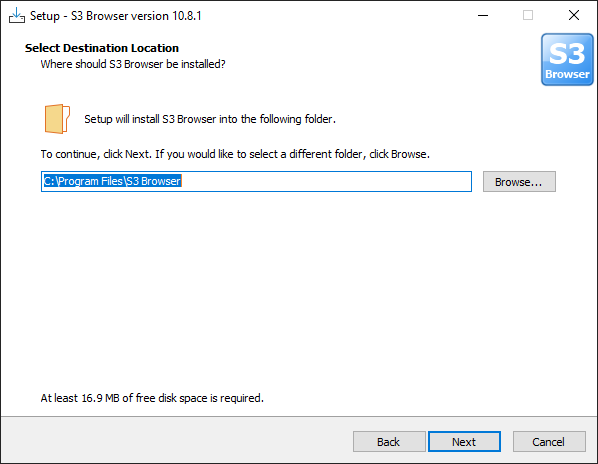
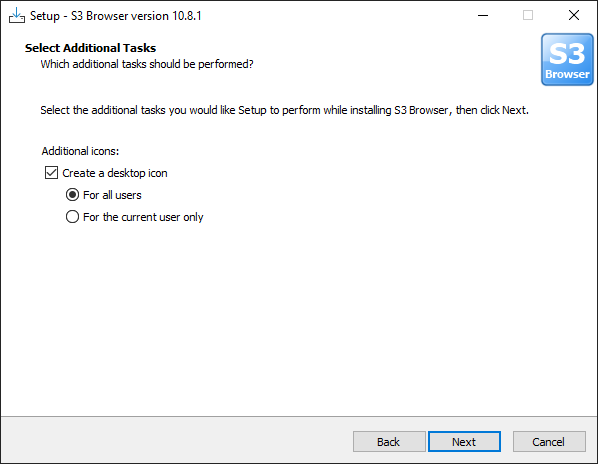
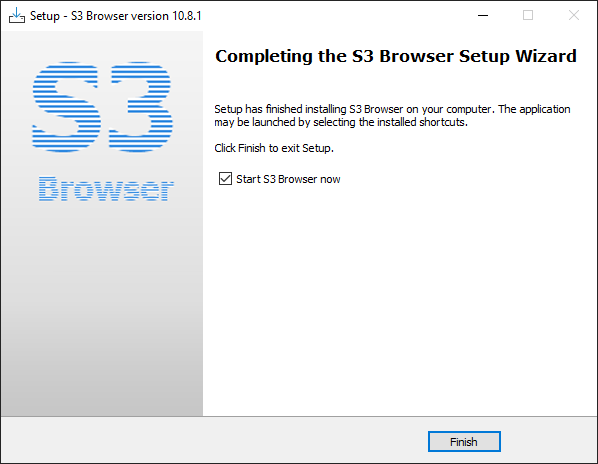
Configure S3 Browser to connect to the S3 service
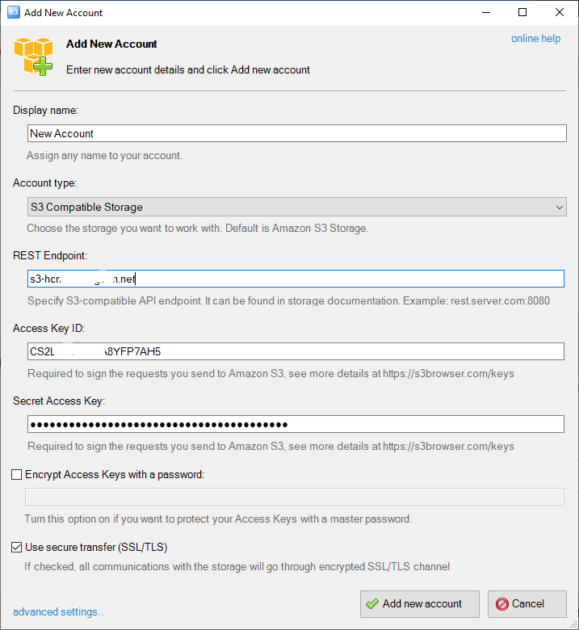
Once installation finishes, click Finish to open the software; a configuration dialog appears immediately. Configure the following parameters:
- Display name: the account display name — anything you like, as long as you remember where it is
- Account Type: this defaults to an Amazon S3 connection; for another provider, select S3 Compatible Storage
- REST endpoint: enter the address from the S3 service you registered
- Access Key ID: enter the key from the S3 service you registered
- Secret Key ID: enter the key from the S3 service you registered
Once the details are entered, click Add New Account below and the connection is complete.
Create a bucket on the S3 service
A bucket is like a drive that holds your data, and it has an address in the connection URL. You must create one before you can upload.
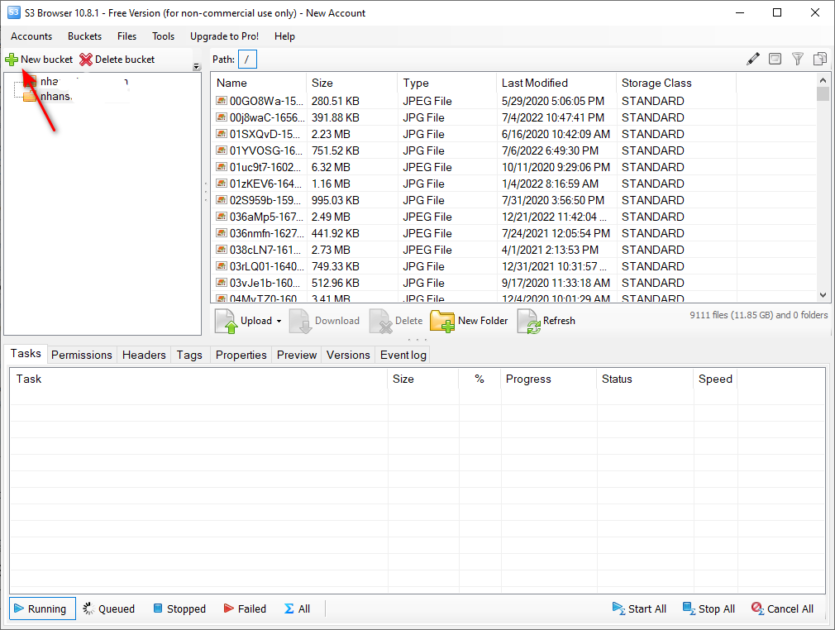
To create one, click the New Bucket button as shown below
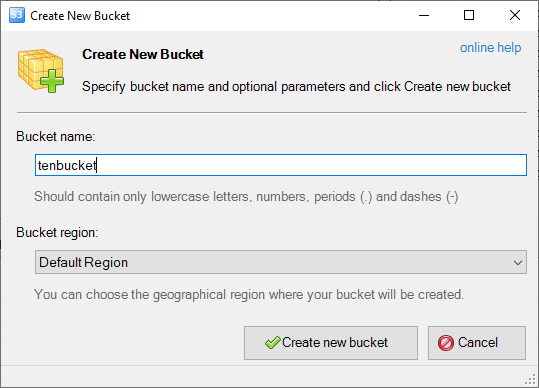
Then enter the bucket name and click Create New Bucket to create it. Note: the name accepts only lowercase letters, numbers, the – character and the period .
Delete bucket
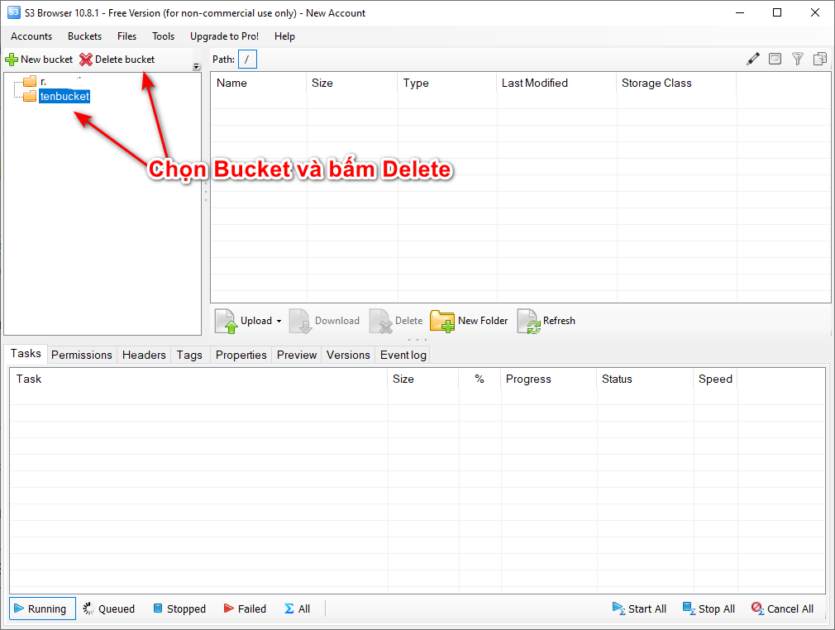
To delete a bucket, select the bucket and click Delete bucket
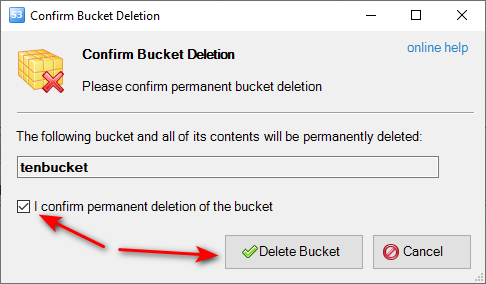
Finally, click confirm
Operations within the bucket
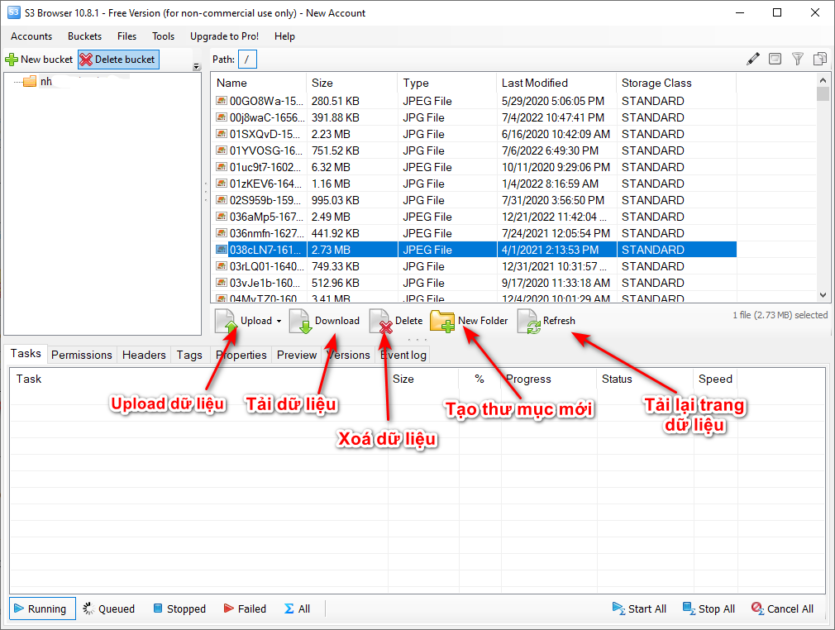
Once the bucket exists, you can create folders, upload and download data, and delete data. Just click the corresponding button.
That is all there is to it — if you need help, feel free to comment below.