Introduction to running Google Workspace and Cloud Email in parallel
Run Google Workspace and Cloud Email side by sideis a solution that lets a business run two email systems on the same domain at once, flexibly and cost-effectively.
In practice, many businesses run Google Workspace and Cloud Email side by side, keeping internal data secure while still taking advantage of Google's ecosystem — Gmail, Drive, Meet and Docs.
Combining the two systems lets a business keep a stable email infrastructure and improve productivity without replacing its entire existing email system.
Running Google Workspace and Email Business in parallel routes email intelligently, so each account uses the correct system without conflicts or data loss.
You can deploy this solution easily through the service at HiTechCloud with a technical team providing 24/7 support.
How to configure Google Workspace and Cloud Email to run in parallel
Required DNS records
MX Google Workspace:
| @ | smtp.google.com |
TXT (SPF):
| @ | v=spf1 include:_spf.hitechcloud.com.vn include:_spf.google.com ~all |
Note:Do not use catch-all on both systems, to avoid email routing errors.
Configure in Google Admin
Go to Google Admin:
https://admin.google.com/
Go to:Admin → Apps → Google Workspace → Gmail → Hosts
Add an Email Server IP from Cloud Email.
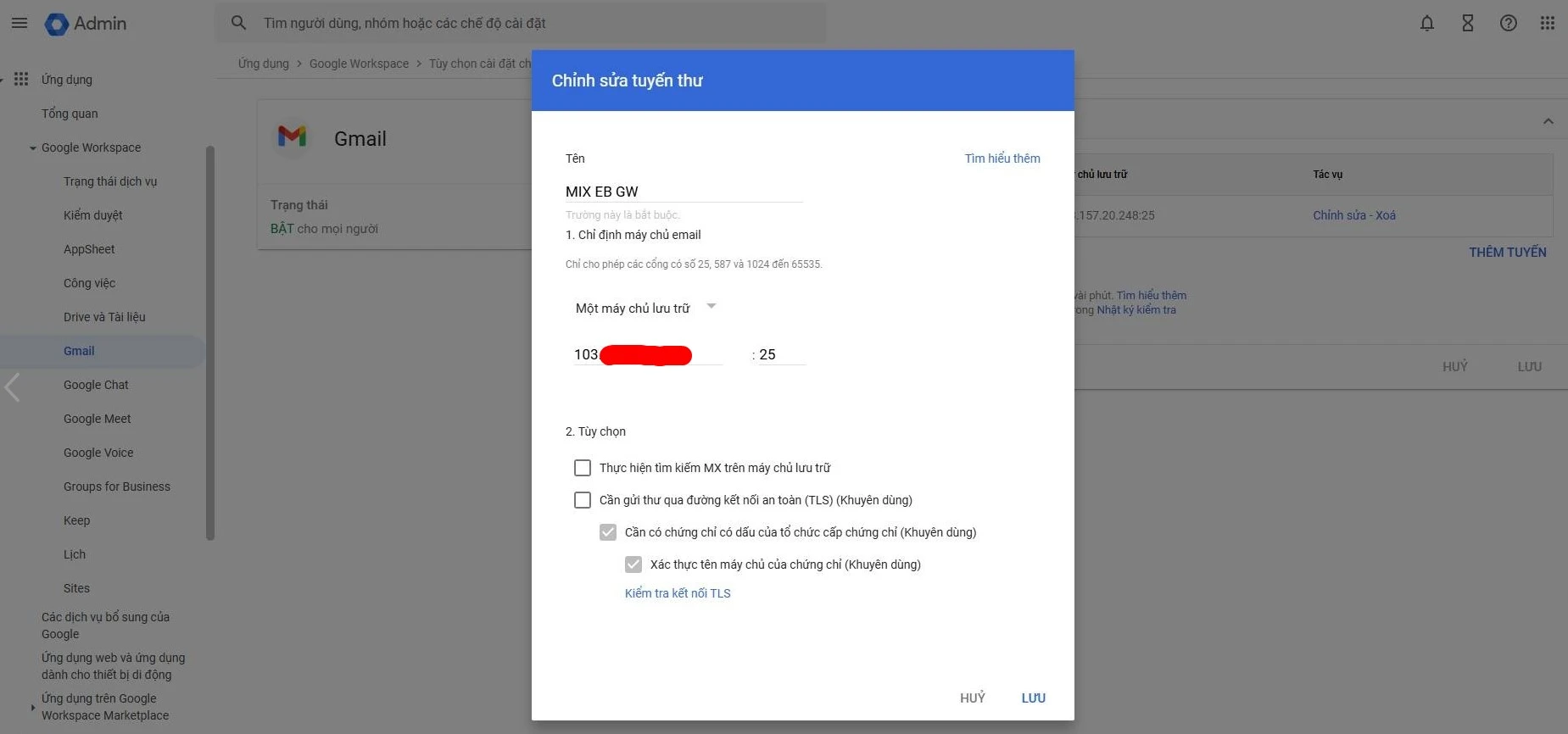
Set up email routing.
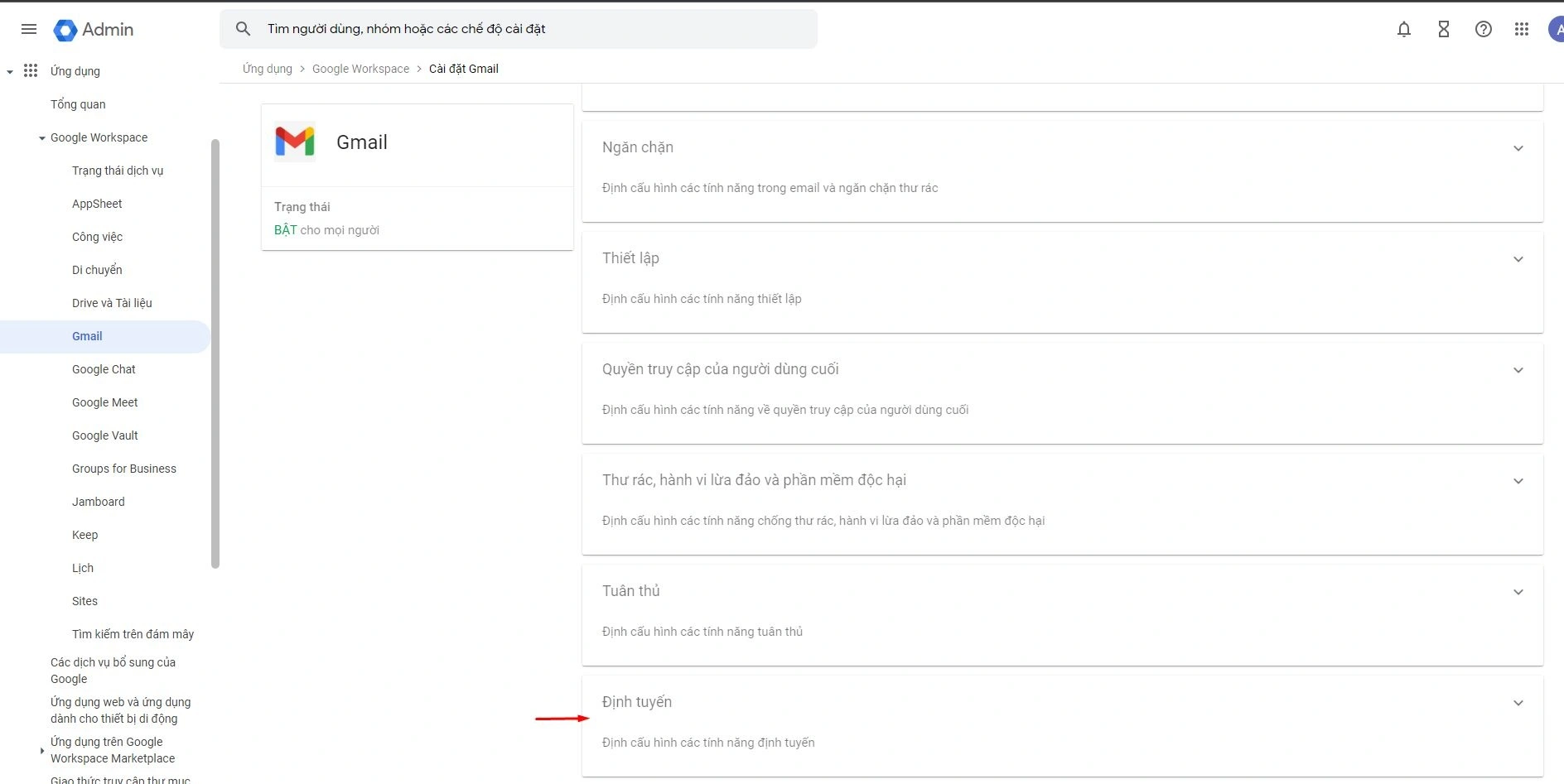
Choose to change the route to the server.
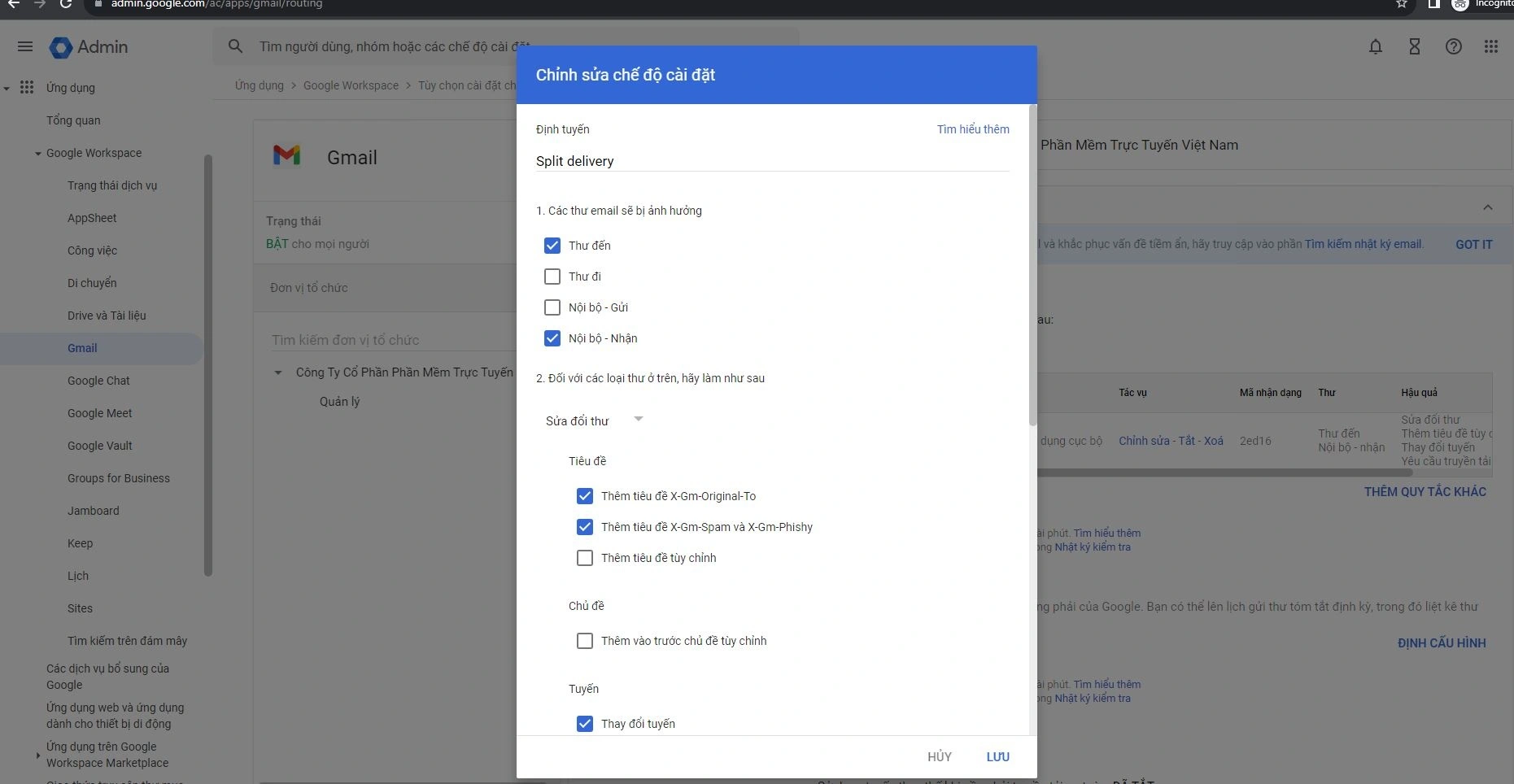
Select the route you created.
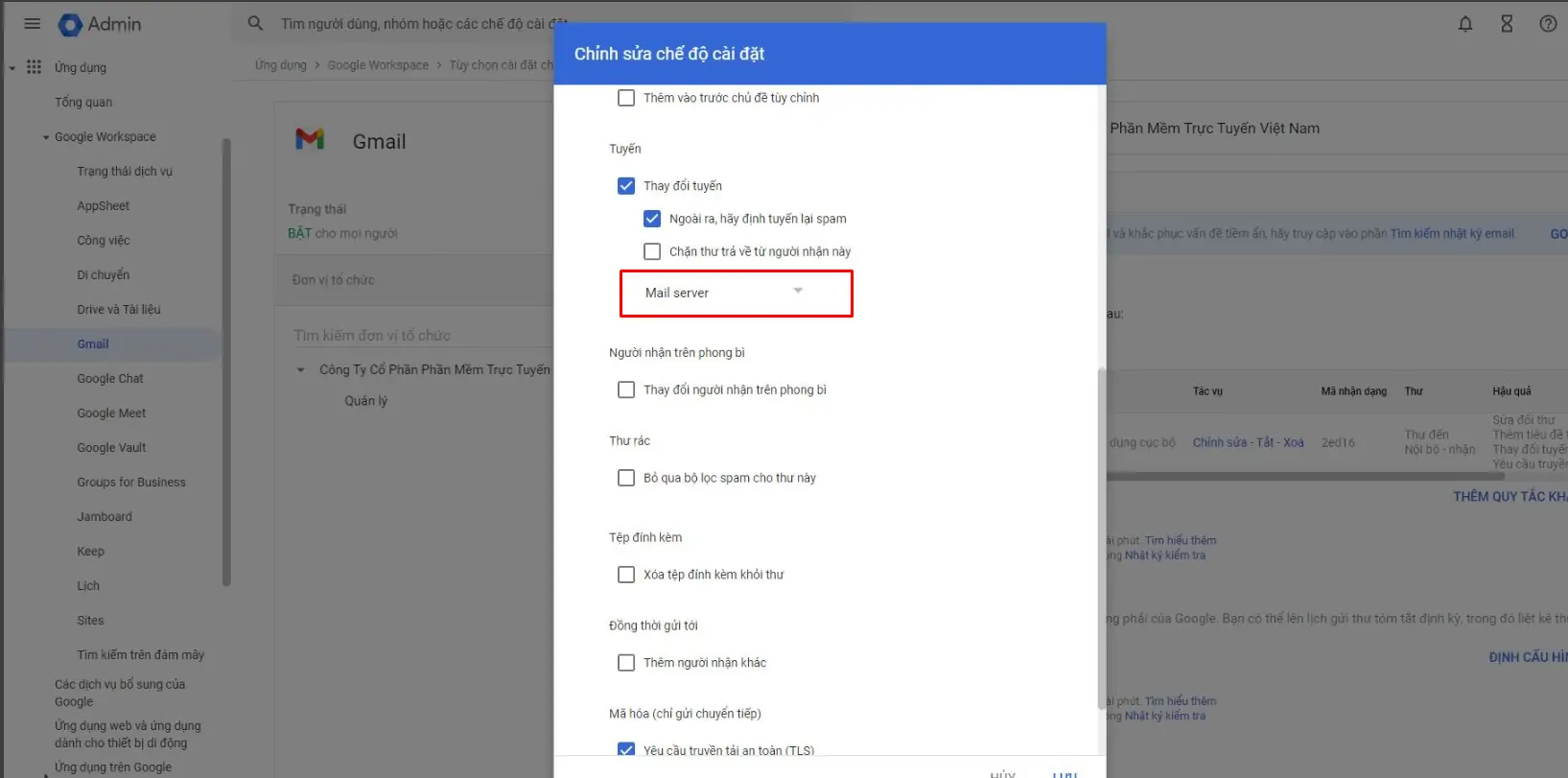
Note:Change “Affected account types” to “all messages”.
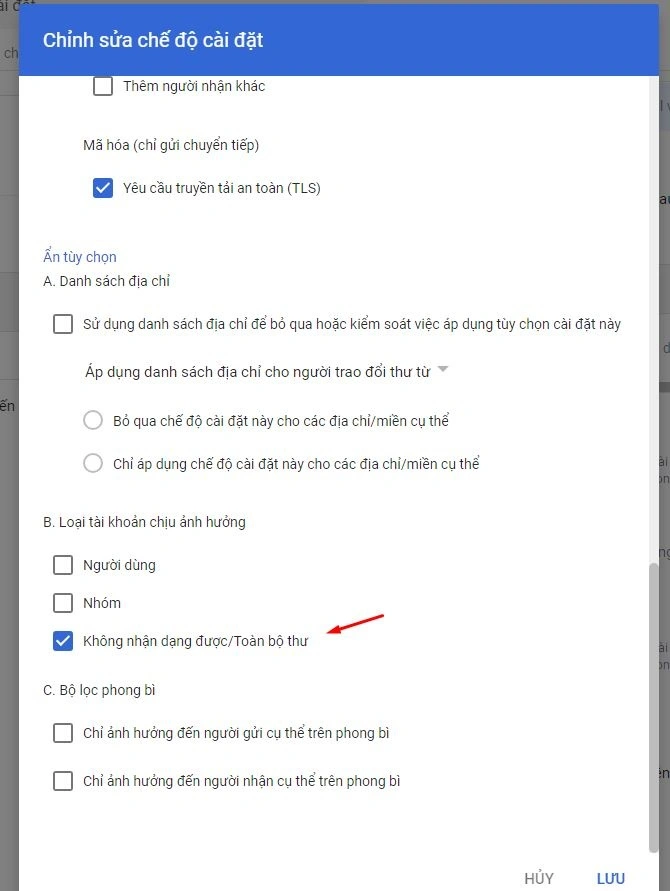
Configure email send and receive between the two systems
After configuring:
- Email from Google Workspace → Email Server works normally
- Email from Cloud Email → Google Workspace needs additional configuration on the system side
Set up an allow rule to avoid spam.
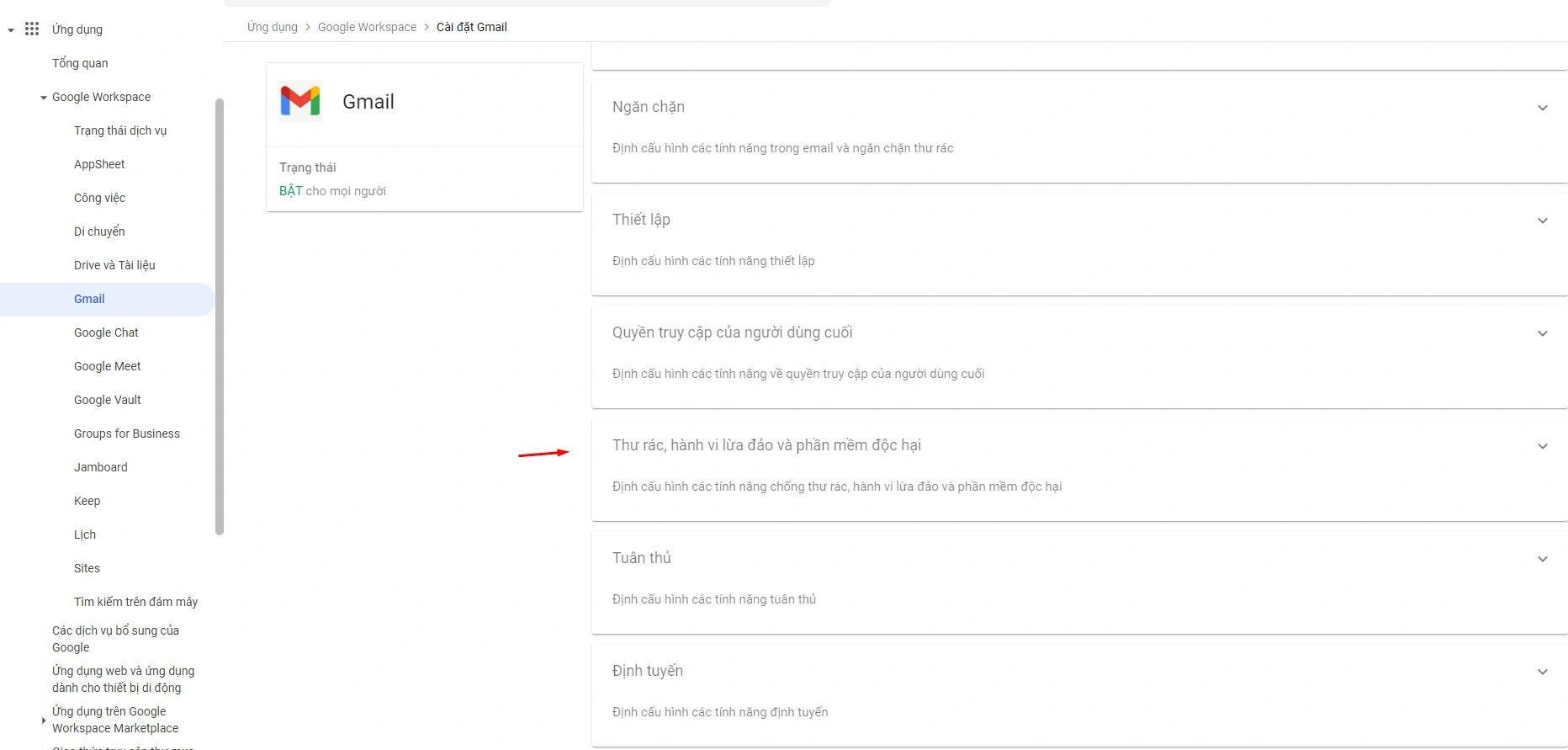
Enable the inbound mail port.
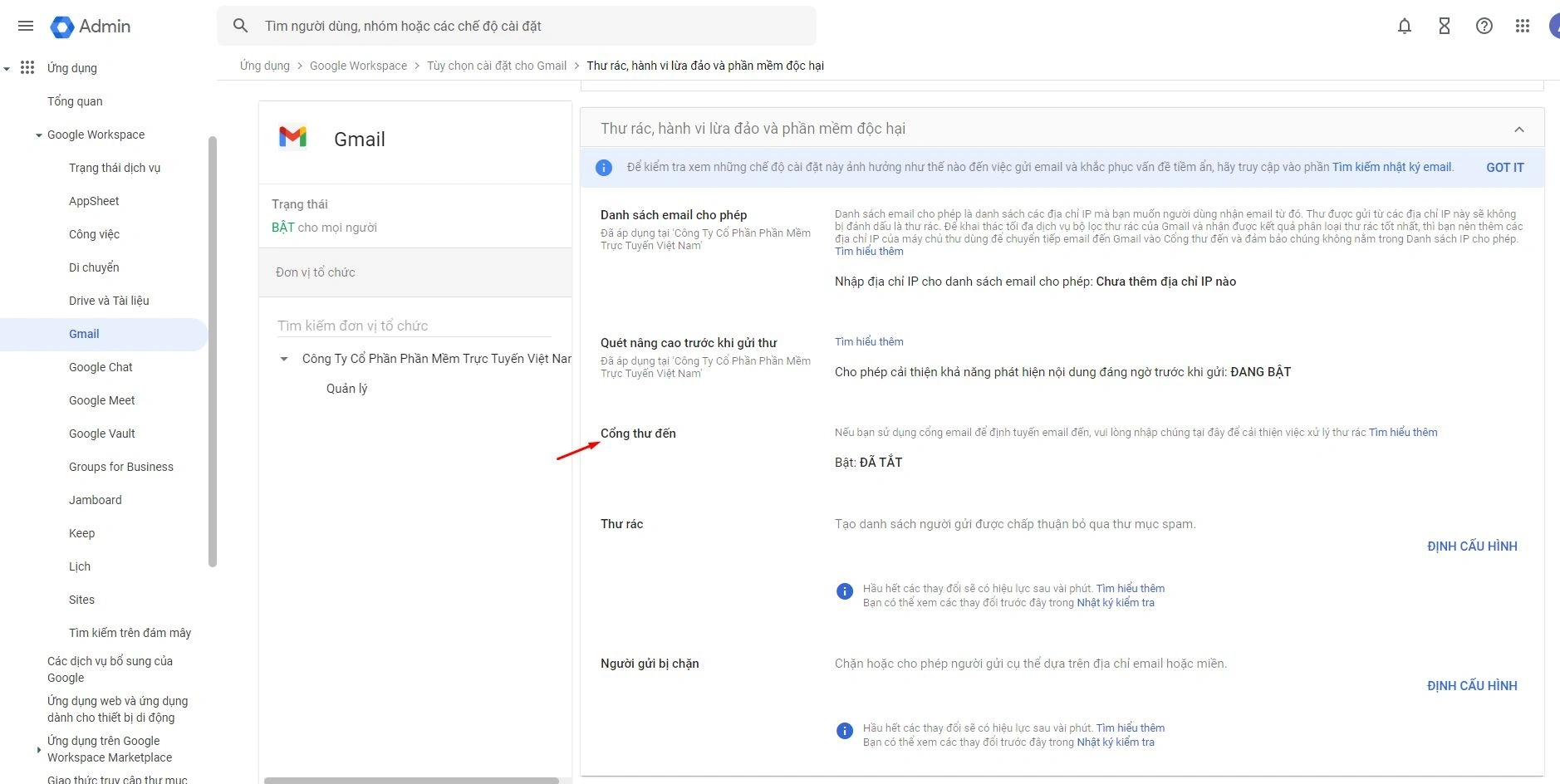
Once complete, the system can send and receive email reliably across both platforms.
Wishing you a successful deployment!
Conclusion
So in just 5 basic steps, you can complete the configurationrunning Google Workspace and Cloud Email side by sideefficiently.
In practice, this approach lets a business split users flexibly, control cost and take advantage of the strengths of both email systems.
Staff can use Cloud Email for stability and security, while management or teams that need to work flexibly can use Google Workspace to increase productivity.
It also lets a business expand its system as it grows, without having to change the whole of its existing email infrastructure.
To learn more, see Google Workspace.
If you are looking for an email solution that is flexible, cost-effective and easy to deploy,running Google Workspace and Cloud Email side by sideis a very good fit for business.