

You have probably lost patience more than once when your computer cannot open a website because of errors like404 page not found hay 502 bad gateway… Flush DNS hay clear DNSwill be one way to fix these errors quickly. So how do you flush DNS on Windows, Linux or macOS? Let's joinHiTech Cloud take a look!
What is flush DNS?
Flush DNSis to flush the DNS cache. Why do that, when the cache is what makes browsing faster? Because when a website changes its IP address or moves to a different web server and your DNS cache has not yet caught up, errors are certain to follow. Even thoughthe internetshows nothing unusual, yet you still cannot reach the website, with typical errors such as404 page not found. Clearing the DNS cache therefore lets your computer refresh the site's records and reach the website successfully. So how do you flush DNS? The procedure differs by operating system — see the sections below.
What is DNS cache?
A DNS cache is a system that temporarily stores the IP addresses corresponding to the domains a user has visited. When a user visits a website for the first time, the browser sends a request to a DNS server to resolve the domain into an IP address.
This IP address is then held in the DNS cache on the user's computer to speed up later visits without repeating the lookup
The DNS cache stores information as records, each containing an IP address and a time to live (TTL). The TTL determines how long the record remains valid in the cache before it must be refreshed. When a website changes its IP address, clearing the DNS cache (a DNS flush) is necessary so that users can reach the new address without errors.
How to flush DNS on Windows
To flush DNS on a Windows computer, follow these simple steps:
Step 1:Close all applications on your computer before flushing DNS. First, open the Start menu, type “cmd” into the search box and press Enter. Alternatively, press Windows + R to open the Run dialog and enter “cmd”.
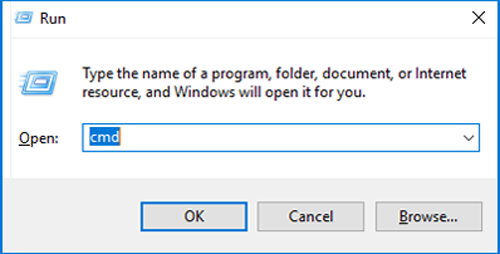
Open cmd to flush DNS
Step 2:At this pointWindows command promptwill appear. Enter “ipconfig /flushdns” there and press enter. Wait a moment,Windows command promptwill show the result “Successfully flushed the DNS Resolver Cache“. That means the DNS cache has been cleared successfully. You can now try reloading the website to see whether the error is fixed.
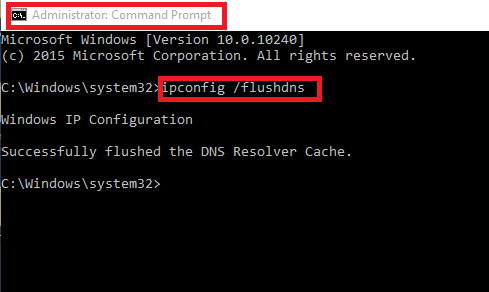
Flush DNS on Windows
Ifflush DNShas not resolved the problem, try disabling the DNS cache entirely and see whether that helps. To do so, follow these steps:
Step 1:OpenWindows command promptas instructed above, by pressingWindows Rto open the dialogRun, enter “cmd” and press Enter.
Step 2:Enter the following command “sc servername stop dnscache” or “net stop dnscache” then press Enter. The DNS cache is now flushed until the computer restarts. Now reload the web page and see whether the network error has been resolved.
How to flush DNS on macOS
Each macOS version flushes DNS slightly differently, but in general they all follow these steps:
Step 1:Open Finder, go to Applications > Utilities and choose Terminal.
Step 2:type in the following command (depending on the OS version):
– For Mac OS 10.10.4 and later:
sudo killall -HUP mDNSResponder
– For macOS 10.10.1, 10.10.2, 10.10.3:
sudo discoveryutil mdnsflushcache
– For Mac OS 10.7, 10.8, 10.9:
sudo killall -HUP mDNSResponder
– For Mac OS 10.5, 10.6:
sudo dscacheutil -flushcache
To run the command above you need the password for an admin account on the machine. If the DNS cache is cleared successfully, the system will not display any message. Open the website and reload it to see whether the error is resolved.
How to flush DNS on Linux
A fairly common application for flushing DNS on Linux is the Name Service Caching Daemon (NSCD). You can clear the local DNS cache by restarting NSCD with the following command in a terminal:
sudo /etc/init.d/nscd restart
If you are using Ubuntu Linux, you can use the following command:
sudo service network-manager restart
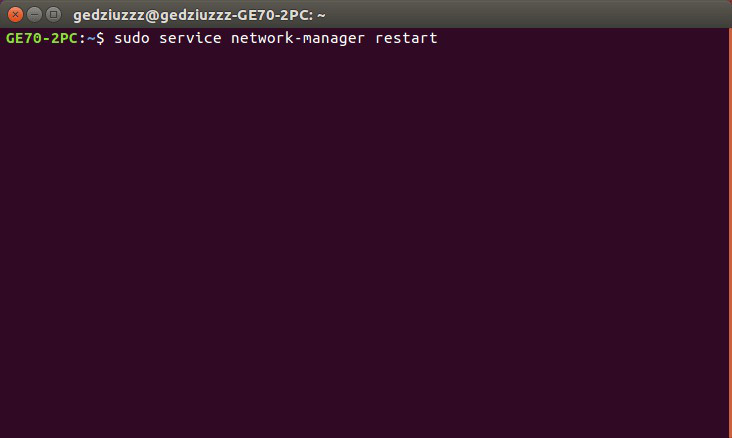
Flush DNS on Linux
Press Enter to run the command; the DNS cache is then cleared.
How to disable Firefox
To disable Firefox, follow these steps:
Step 1: Close the browser:
- Click the “X” in the top-right corner of the Firefox window to close the browser.
Step 2: Uninstall Firefox (if you want to remove it completely):
- Open the Start menu on Windows.
- Select “Control Panel”.
- Find and select "Programs and Features".
- Find Mozilla Firefox in the list, right-click and choose “Uninstall”.
Step 3: Turn off synchronization (if you do not want to use it):
- Open Firefox, click the menu and select “Preferences” or “Settings”.
- In the “Sync” section, turn off the sync option.
Step 4: Disable extensions:
If you only want to stop using Firefox temporarily without uninstalling it, just close the browser.
On the Extensions tab you can disable or remove extensions you do not need.
That covers a few things to know about clearing the DNS cache to fix a website that will not load. We hope this article has shown you how to flush DNS on different operating systems. Leave your email below to get updates on useful tech articles from Bizfly Cloud!