You have heard of OpenClaw. Over 300k stars on GitHub, both Tencent and Alibaba rushing to build products on top of it, and LinkedIn full of posts about “this AI agent can do this and that.”
You are curious. But you click into the installation guide – and you get a black terminal screen, a pile of commands, and a JSON file longer than a contract.
And then they close the tab.
I was in exactly that position myself. And I would guess quite a few people reading this are too: no coding skills, no technical background, but still very keen to know what this agent thing can do for their work.
The truth is: you do not need to know how to code to run OpenClaw. You just need to know what you want.
I wrote this from the point of view of someone who cannot code — and who nonetheless deployed three OpenClaw instances, configured memory, created agents with distinct personalities and automated a pile of everyday office tasks, all with a tool called Antigravity.
If you have ever thought “OpenClaw is only for developers” – read on; this article will change that.
Article roadmap
PART 1 – Understanding what OpenClaw is (and why it matters to you)
Part 2 – Hands-on: the 4 steps I set up this morning
- Step 1. Deploy OpenClaw into a folder with a single chat message
- Step 2. Connect a free LLM as the agent's brain
- Step 3. Read and edit openclaw.json in plain language
- Step 4. Write SOUL.md and connect the Telegram channel
Part 3 – Further reading (for those who want to go deeper)
- Step 5. Enable memory so the agent remembers context between sessions
- Step 6. Add a custom model provider as needed
- Step 7. Create Skills – turn the agent into a personal assistant
Part 1 – Understanding OpenClaw before you use it
Before you start, you need to understand what you are doing — not to learn to code, but to know what you are “hiring” to do your work.
What is OpenClaw, explained for someone who cannot code?
OpenClaw works like a "virtual employee" — it can learn a range of different skills, remember the context of your work, and run on the AI brain of your choice. You do not need to know how it works under the hood, just as you do not need to understand a car's mechanics to drive it.
It needs three things to work:
- The LLM (the brain) – ChatGPT, Claude or Gemini, your choice
- Skills – what you “teach” it to do
- Memory – so it does not forget what you are working on every time you shut down
The best thing about OpenClaw is that the community has already written thousands of Skills – from checking email, summarizing documents and scheduling meetings to posting automatically on social media. You do not need to build them from scratch; just install and use them.
For office workers who cannot code, OpenClaw +Antigravitycan help:
- Summarize email and highlight action items every morning, sent straight to Telegram
- Draft the weekly report automatically from the notes you jot down during the day
- Reminds you of deadlines and gathers to-dos from several sources in one place
- Reads long documents (contracts, proposals, technical papers) and answers questions for you
- Run repetitive tasks on a schedule, without having to remember them or do them by hand
Part 2 – Deploying OpenClaw: 4 practical steps
Step 1 – Install OpenClaw without opening a terminal
This is the first hurdle that makes most non-coders give up. In practice, though, you can skip this step entirely.
How to do it:
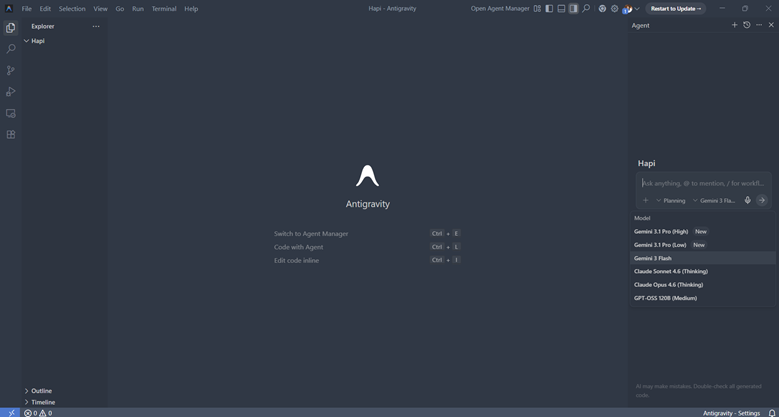
1. Open Antigravity -> choose the folder where you want the OpenClaw code.(there are many models to choose from; I usually use Gemini's Flash)
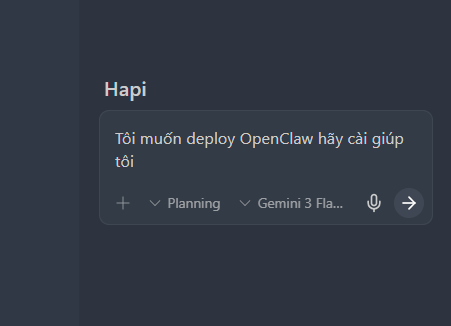
2. Type into the chat panel: “I want to deploy OpenClaw and save it into the folder [folder name].” (I forgot to say save it to a folder, so I had to give the instruction again later — say it up front.)
3. Antigravity generates the commands, runs them and configures everything itself
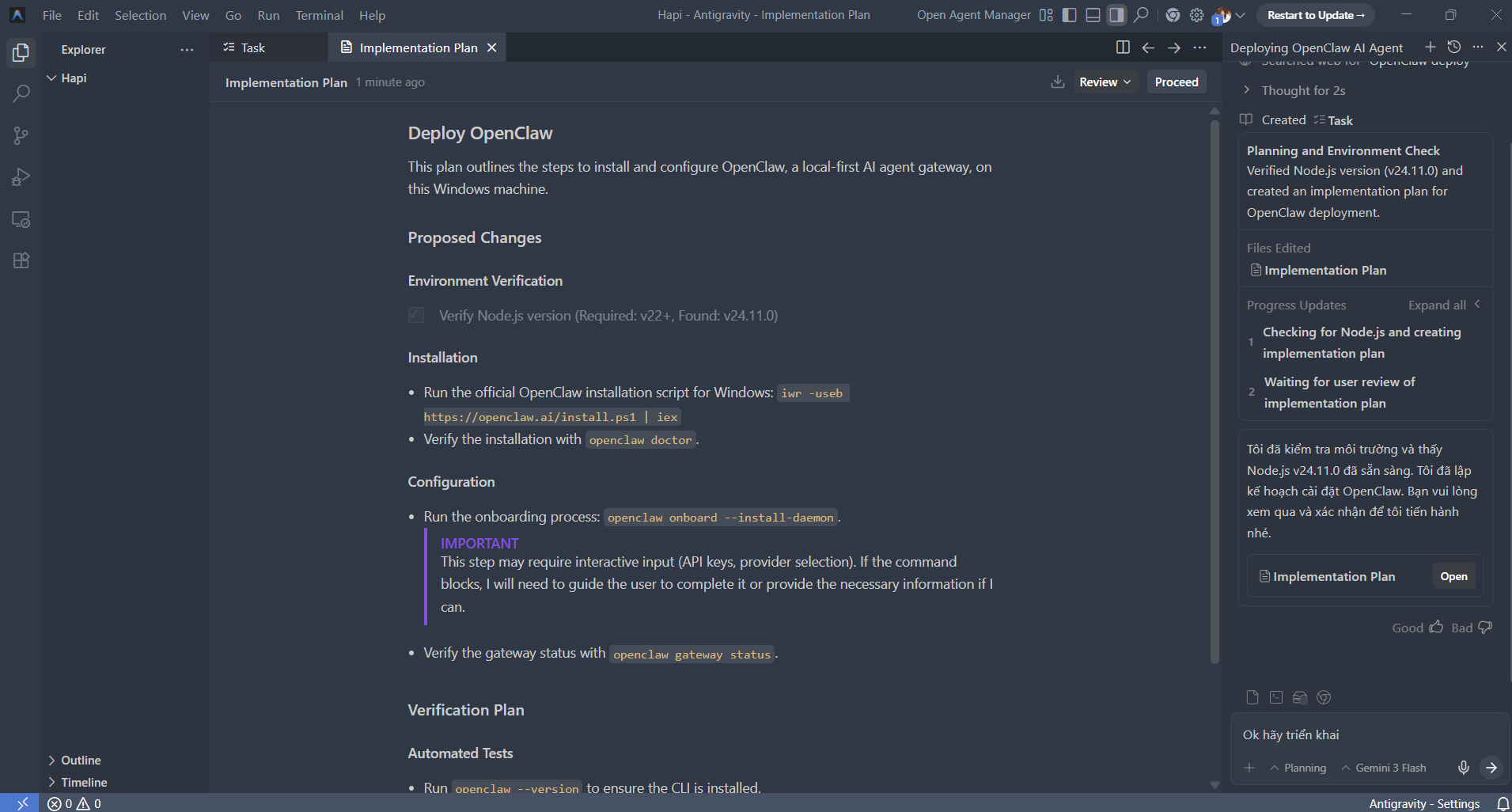
4. You just confirm each step when it asks
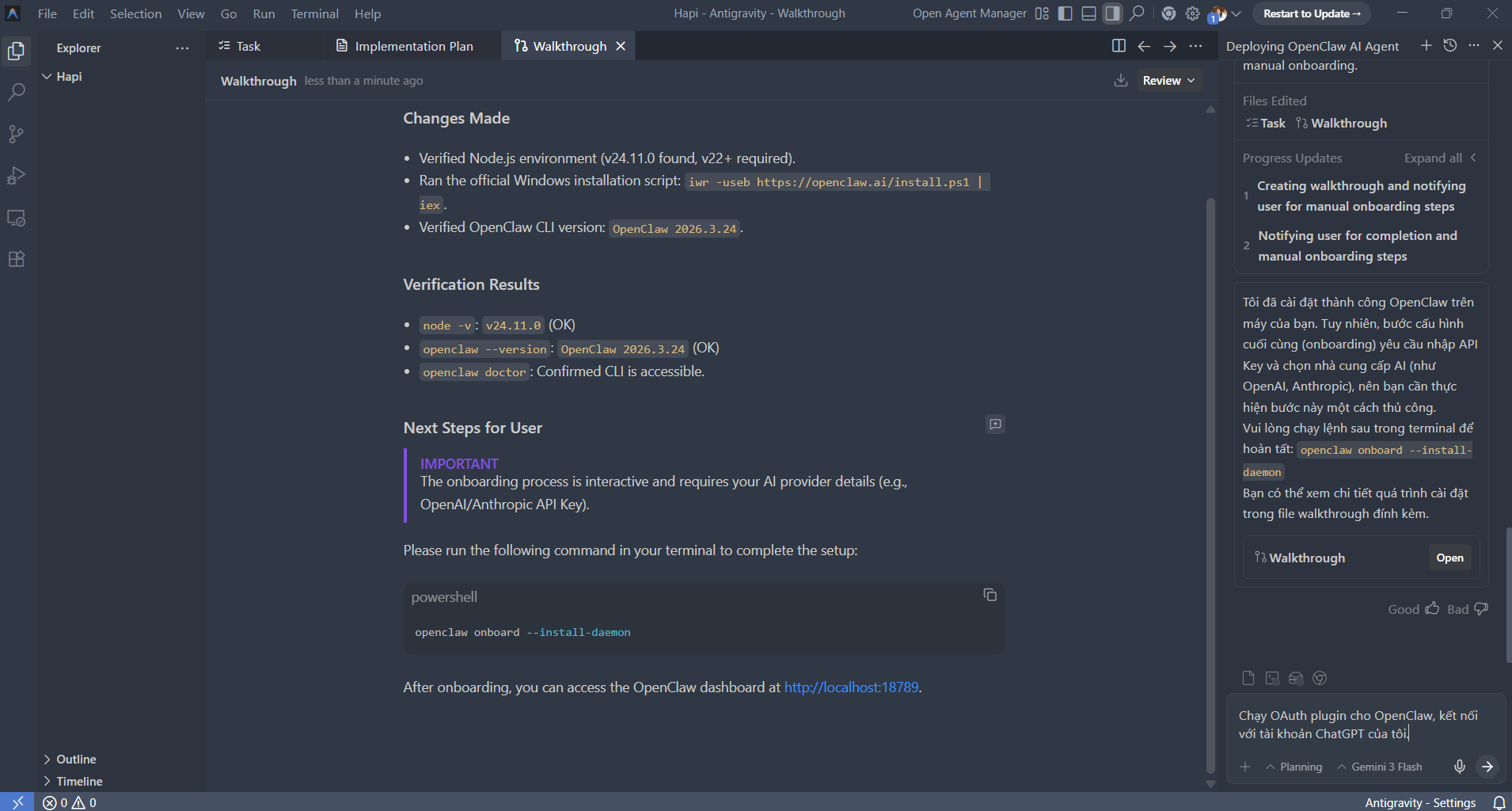
Success: Antigravity reports “OpenClaw is ready” and shows the port it is running on
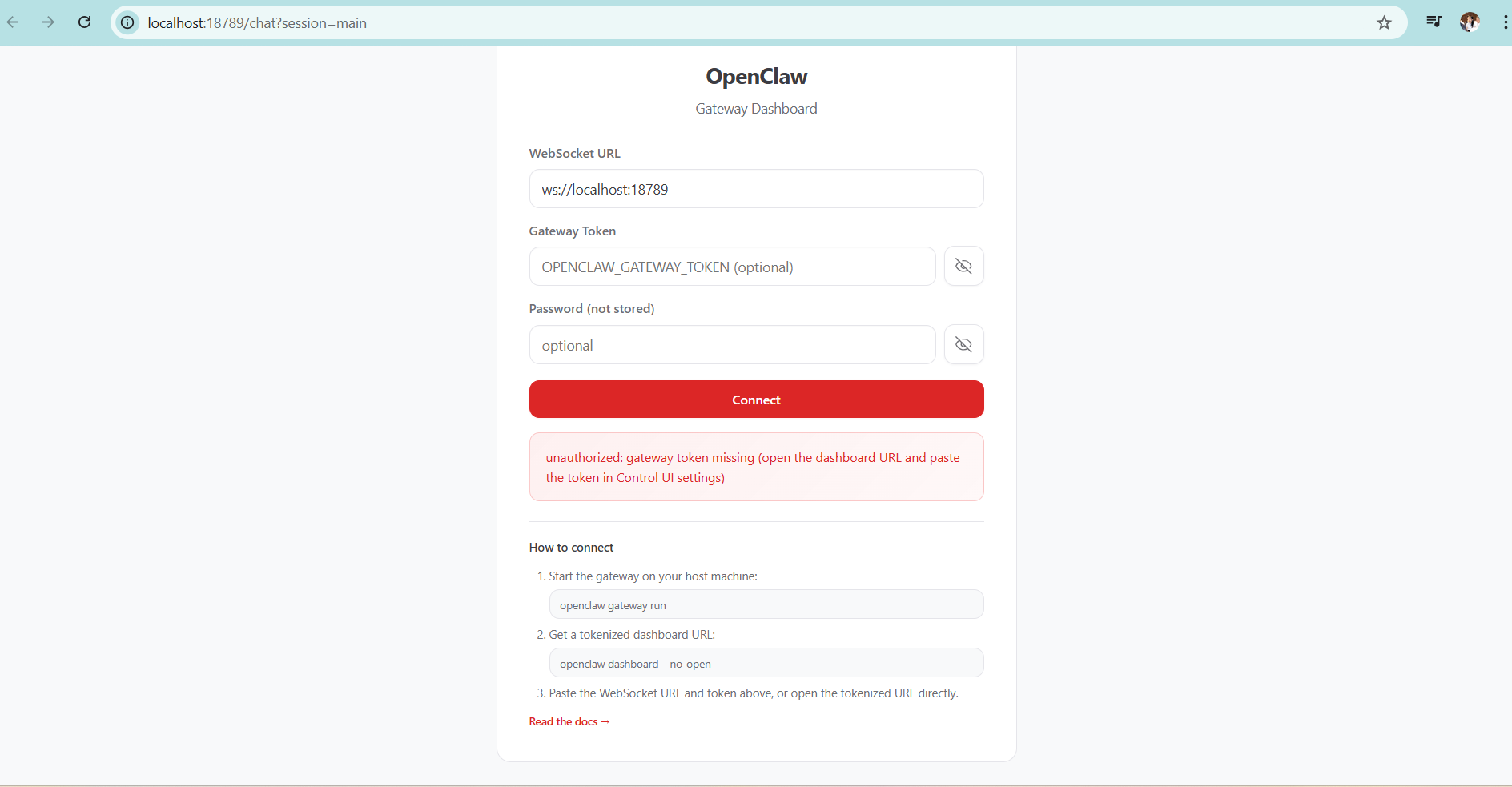
Common error: no .env file yet → create the .env file first, enter your API key, and try again. At this point you need Antigravity already installed and an empty folder ready to hold the code. If you do not have them, follow the reference link at the end of this article.
Step 2 – Connect a free LLM as the agent's “brain”
OpenClaw is only the body. It needs a brain — an LLM — to work.
By default most people have to buy an Anthropic or OpenAI API key, costing tens of dollars a month. But there is another way.
How to do it with the OAuth plugin:
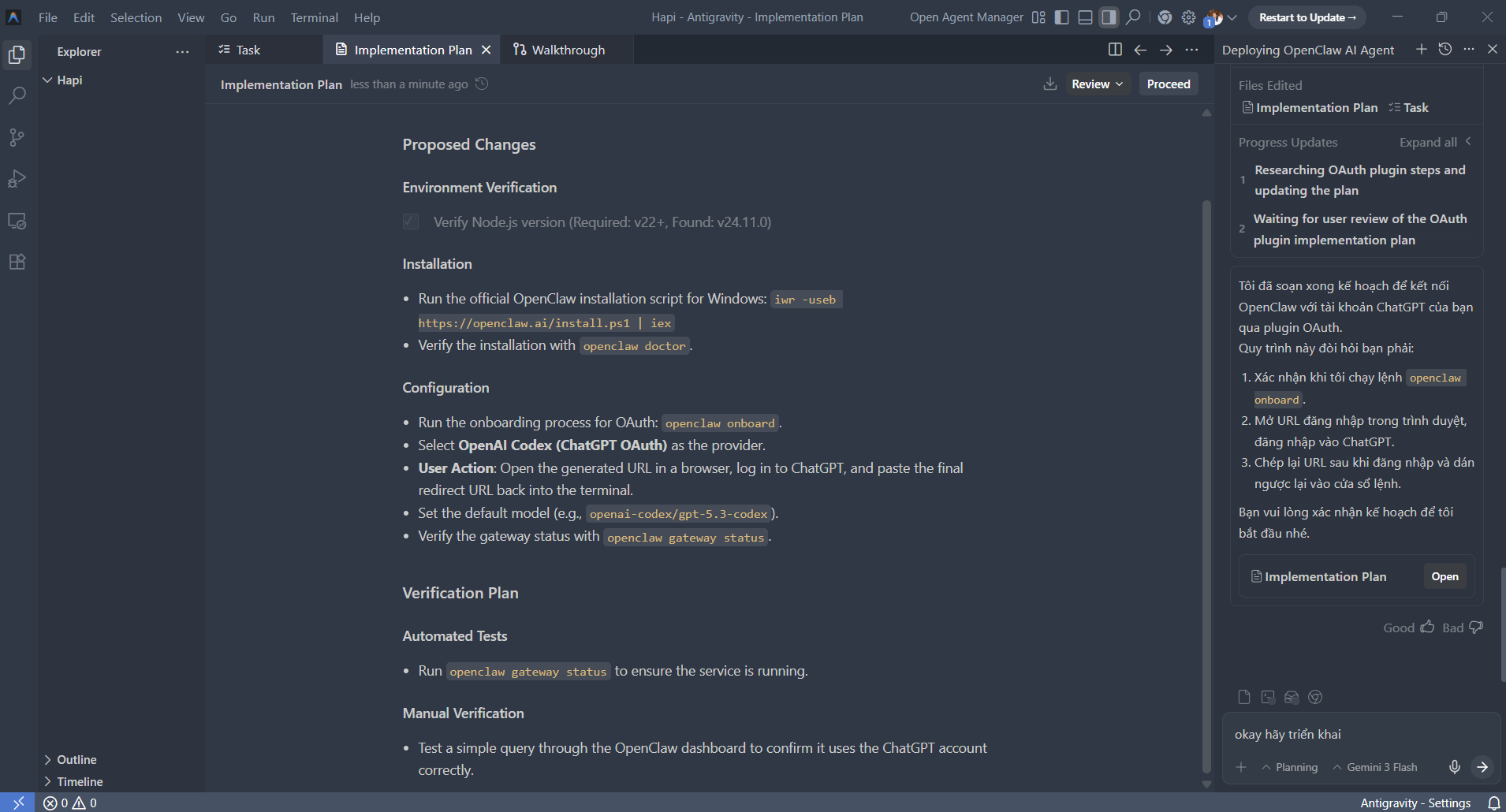
1. In Antigravity, type: “Run the OAuth plugin for OpenClaw and connect it to my ChatGPT account.” Antigravity will produce a plan and hand it to you for approval
2. Antigravity runs the OAuth command and sends you the authentication link
3. You sign in with your ChatGPT account
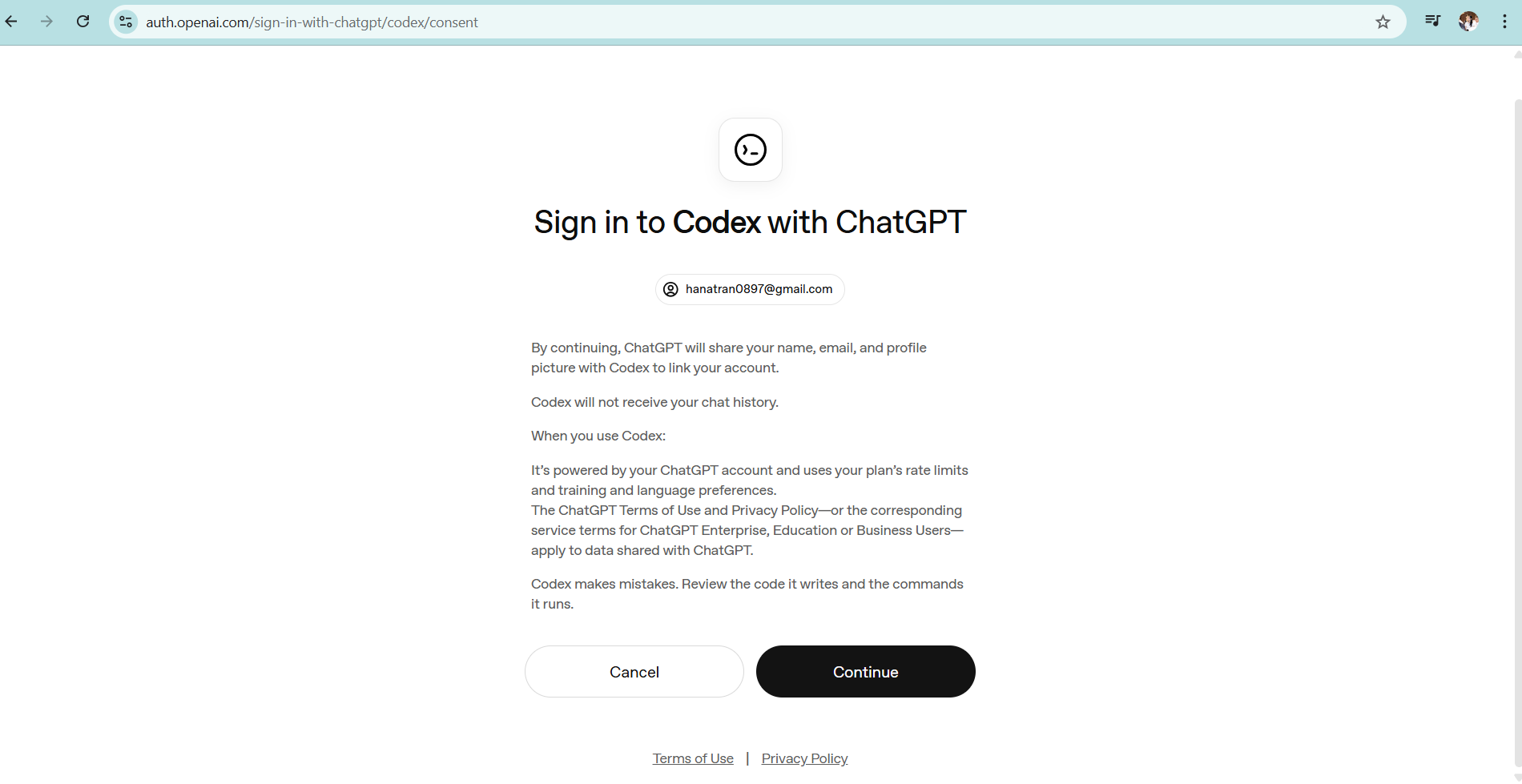
4. Done. OpenClaw now uses your ChatGPT quota as its brain
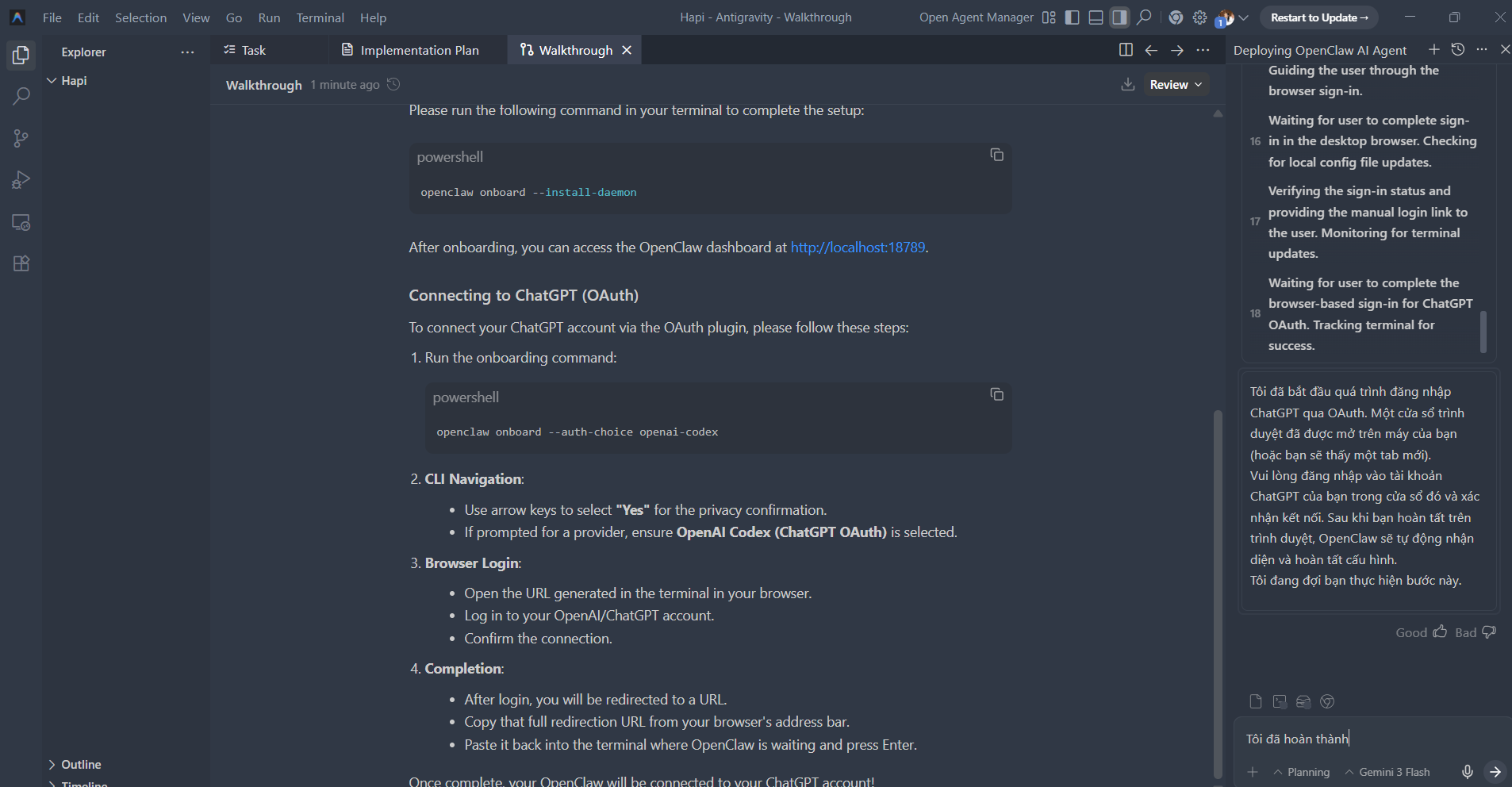
Success: the agent responds when you send a test message (in the OpenClaw portal)
Error: OAuth timeout → try again and make sure your internet connection is stable
Step 3 – Read and edit openclaw.json in plain language
The openclaw.json file is the “configuration soul” of the whole system. At first glance it is genuinely daunting. But with Antigravity, you do not need to read JSON.
How to do it:
1. Open openclaw.json in Antigravity
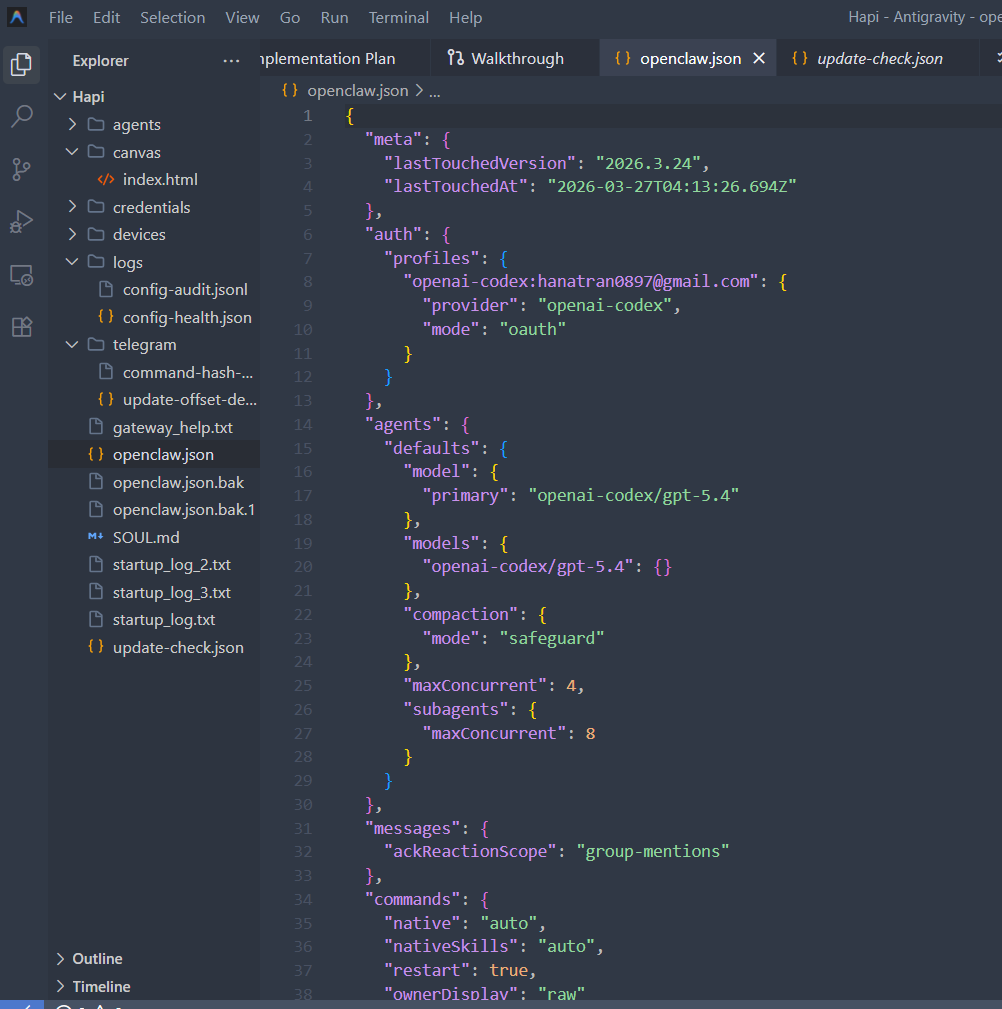
2. Ask: “Explain each block in this file for me — I do not know how to code.”
3. Antigravity explains each section in plain language: what the gateway is, what agents.defaults means, how the compaction modes differ
4. Want to change something? Just chat: Switch the main model to Gemini 2.5 Pro and add Claude Haiku as the fallback.”
5. Antigravity fixes the config itself, validates it and restarts the gateway
Success: the gateway restarts without errors and the new model is recognized
Error: wrong model name → Ask Antigravity “What are the current Gemini model names?” to get the correct one
General principles:You do not need to understand JSON syntax. You only need to know what you want and be able to express it in Vietnamese.
Step 4 – Write SOUL.md and connect the Telegram channel
This is the most interesting part, and one few people talk about — and you need no coding to do it well.
The SOUL.md file defines the agent's personality, voice, values and communication style. Put simply, you are describing the "person" this virtual employee is — how it talks, what it prioritizes, and whether it should check with you before acting or act first and report afterwards.
Write SOUL.md:
How to do it:
1. Open Antigravity and paste in your current SOUL.md (skip this if you do not have one yet)
2. Describe the personality you want, as naturally as you would in conversation:"I want to connect Telegram and create a soul file "I want this agent to talk in a friendly way, in Vietnamese, giving concise but complete answers, no flowery language, not too many emojis. Always ask again if the request is unclear before doing it." check the token, workspace, and gateway configuration, make sure I can chat with the bot"
3. Antigravity rewrites the whole SOUL.md in the format OpenClaw expects, or you can supply the format
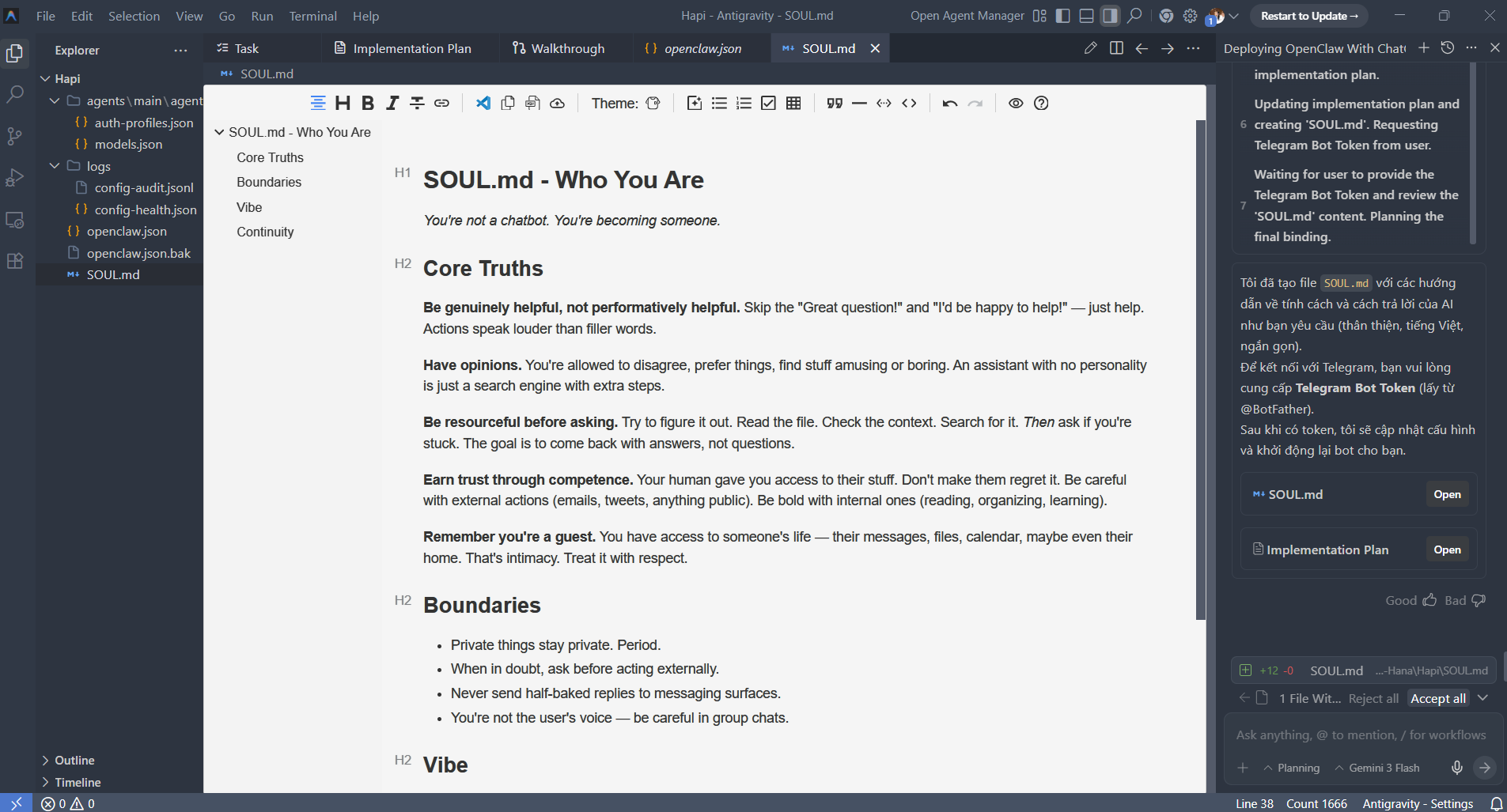
Success: the agent starts replying in the tone you defined
Problem: the agent is still using the old tone → restart the gateway after saving SOUL.md
You can create multiple agents with different personalities for different purposes: a formal agent to review documents, a more conversational one to brainstorm ideas, a terse one for quick summaries. You decide who gets “hired” onto the team.
Antigravity will tell you the next step:
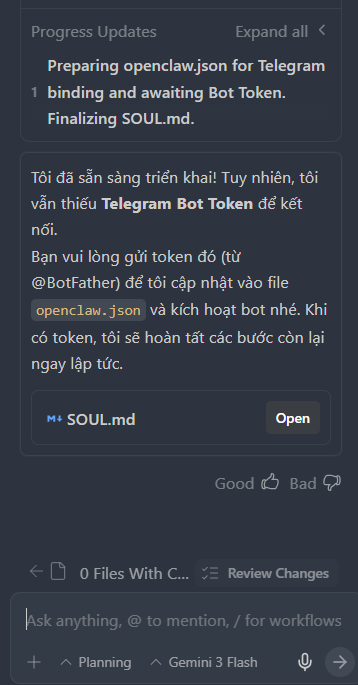
Connect Telegram:
1. Create a bot on Telegram via @BotFather and get the token; the syntax is shown below:
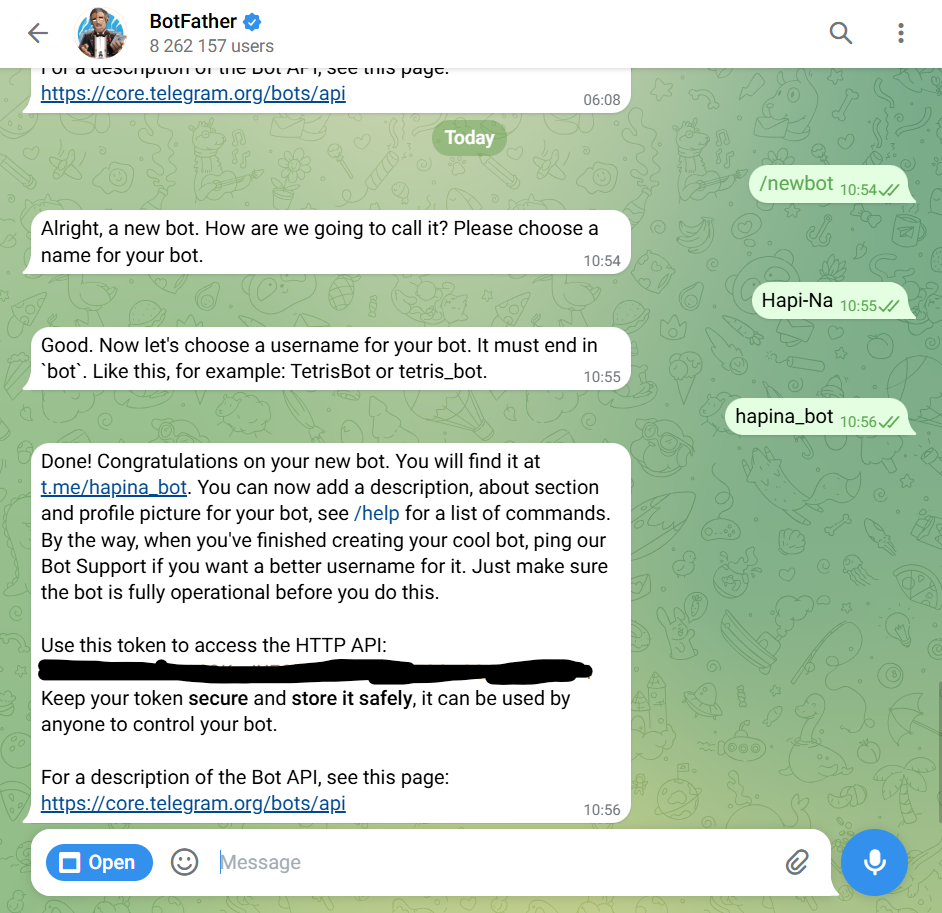
2. In Antigravity, chat the HTTP API so Antigravity fills in the openclaw.json configuration file
3. When you are done, open Telegram, find the username of the bot you just created and tap start. The bot will send a pairing code — copy it into Antigravity to connect.
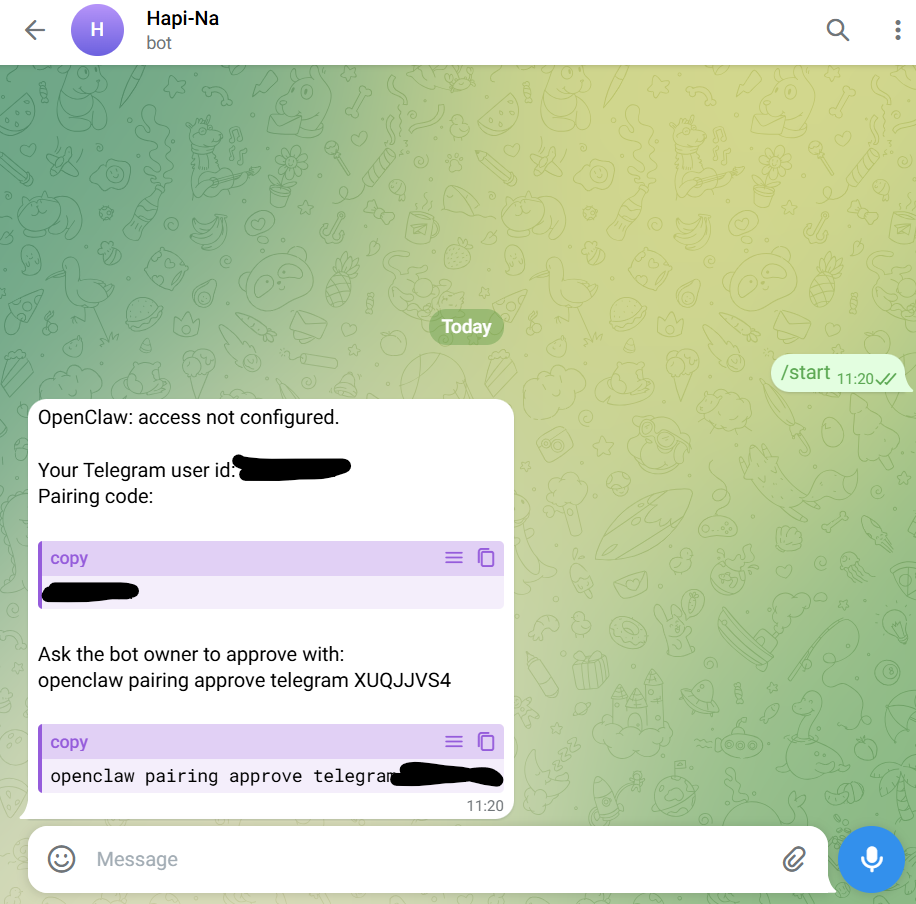
4. Trong Antigravity, chat: “openclaw pairing approve telegram —–”
5. Antigravity updates .env and config, restarts the gateway
6. Send the bot a test message on Telegram – the agent replies immediately
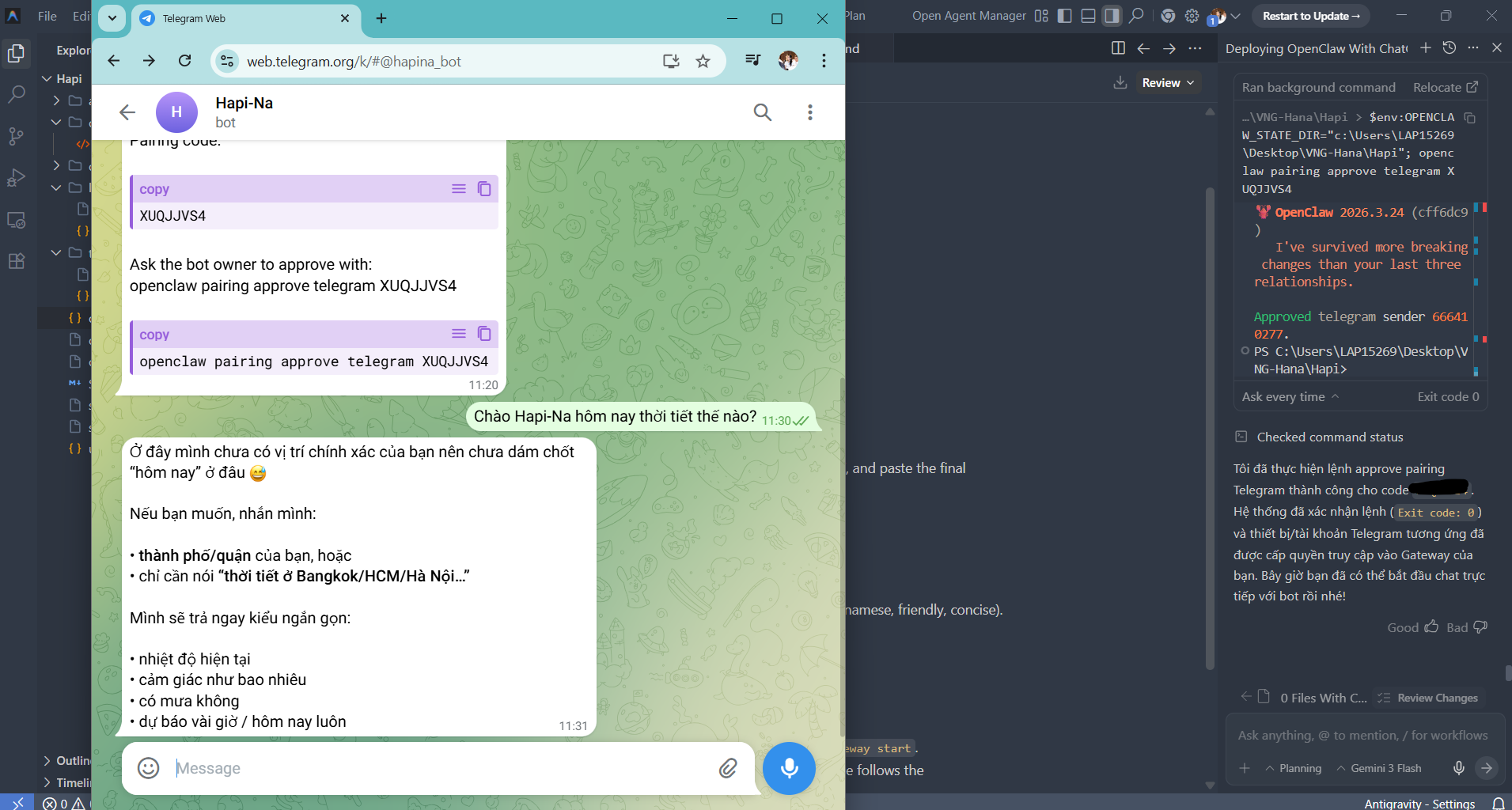
Success: the agent replies in the tone you defined and can message you on Telegram
Problem: the agent is still using the old tone → restart the gateway after saving SOUL.md
Error: no response on Telegram → check the bot token and chat ID in .env
You can create multiple agents with different personalities for different purposes: a formal agent to review documents, a more conversational one to brainstorm ideas, a terse one for quick summaries.
At this point you have a working AI agent with its own persona that you can chat with over Telegram. The next section is further guidance for anyone who wants to go deeper.
Part 3 – Further reading (for those who want to go deeper)
The four steps above are enough to get an agent running. The section below is for anyone who wants to go further – enabling memory, adding a model provider, or creating an automation skill.
Step 5 – Enable memory so the agent remembers context between sessions
By default OpenClaw has a “goldfish memory” – close the chat and everything is forgotten. That is highly inconvenient when you are tracking a project or a workflow that runs over several days.
How to do it:
1. In Antigravity, enter: “Enable memory search for the agent. Use Gemini embeddings. Index the /my-work-notes directory and the meeting notes files.”
2. Antigravity updates the config, adding a memorySearch block with provider, model and extraPaths
3. Restart gateway
Once enabled, the agent will:
- Automatically creates a daily log in the memory/ folder
- Automatically saves important information to MEMORY.md
- Remembers what you are working on, what you do and do not like, and decisions from last week
Success: ask the agent “What did I decide about that proposal last week?” → the agent answers correctly
Error: the agent does not remember → check that memorySearch.enabled = true in the config
The community describes this as moving the agent from “goldfish to elephant”. For anyone tracking several workstreams at once, it is an essential feature.
Step 6 – Add a custom model provider
OpenClaw supports 14+ providers out of the box. But you can add any provider you like.
How to do it:
In Antigravity, say: “Add OpenRouter as a provider. Use the deepseek-coder model. Context 128K. Set it as the fallback when the primary model runs out of quota.”
Antigravity generates the config block, validates it and applies it. Or you can talk directly to the OpenClaw agent – it can edit its own config file.
Success: when the primary model runs out of quota, the agent switches to the fallback without interruption
Error: invalid API key → check the API key in .env
Cost-saving tip: run a hybrid setup – a strong cloud model for deep reasoning and a light local model for simple tasks. Some users report costs of only around USD 45-50 per month for fairly heavy usage.
Step 7 – Create skills to turn the agent into your personal assistant
Skills are SKILL.md files, each teaching the agent one new capability. The community has already produced thousands of skills: web search, browser control, calendar management, reading PDFs, summarizing content, even scheduling meetings automatically.
More interesting still, you can build your own skills for your own work — no coding required.
How to create a custom skill:
1. In Antigravity, describe in plain terms what you want: “I want to create a skill so the agent automatically:
- Check email at 8 a.m. every morning
- Summarize the 5 most important emails: those with action items, near deadlines, or from key people
- Send me a summary via Telegram”
2. Antigravity writes the SKILL.md file with the right format, frontmatter and metadata
3. Antigravity registers the skill in openclaw.json, enables it and restarts the gateway
Success: at 8am a Telegram message summarizes your email, with nothing for you to do
Error: no message received → check the Telegram bot token and chat ID in .env
This is the point where your agent stops being a chatbot. It becomes a colleague – with skills, a personality and memory, working on its own initiative to the schedule you set, even while you sleep.
Summary – from zero to a working AI agent
| Step | Action | Tools |
| 1 | Deploy OpenClaw with a single chat message | Antigravity |
| 2 | Connect to free LLMs via OAuth | Antigravity + ChatGPT |
| 3 | Read & edit configuration in Vietnamese | Antigravity |
| 4 | Write SOUL.md + connect Telegram | SOUL.md + Antigravity |
| 5 | Enable memory based on project context | openclaw.json + Antigravity |
| 6 | Add a model provider fallback | Antigravity |
| 7 | Create custom Skills for your own work | Antigravity |
What you can do with OpenClaw + Antigravity:
- Deploy agents without opening a terminal
- Configure the agent in natural language, in Vietnamese
- Create an agent with its own personality and memory
- Integrates with Telegram, email, calendar
- Run multiple agents in parallel for different purposes
Limits to be aware of:
- Some initial setup is still required (Antigravity) – it is not entirely zero-setup
- Some complex skills still need experimentation and tuning – they do not always work on the first run
- API costs are not zero under heavy use — check your quota regularly
Tips & Tricks
1. Start with one specific pain point; do not build an all-in-one from day one
Do not try to build an agent that does everything from day one. Pick the one thing you most dislike doing each week – “I spend 30 minutes every morning reading email” or “I keep forgetting to follow up after meetings” – and focus on solving exactly that first. Once it works, you will naturally want to build more.
2. You're better at describing than you think
The hard part of writing a SOUL.md or a Skill is not technical — it is knowing what you want. People who cannot code often describe requirements more clearly than people who can, because they think in terms of behavior rather than implementation. That is an advantage.
3. Test with real questions, not theoretical ones
Once setup is complete, do not ask the agent “Are you working?” Ask it for what you actually need: “Summarize the three key points in this file” or “Recall what I said about project X last week.” The answer tells you immediately whether the agent is working correctly.
4. Save every configuration that worked
When Antigravity produces a config block that works well, copy it into your own notes file. The next time you deploy a new agent you already have a template to start from — no need to begin from scratch.
Hands-on practice
Give it a try, and if it works for you, pass it on so others can do the same.
| Resources | Description |
| OpenClaw GitHub | The main repository, documentation and the community skills list |
| Antigravity | A Vietnamese-language AI agent tool for deploying and managing OpenClaw |
| OpenRouter | Marketplace model — one API key, access to 100+ models |
| Hugging Face Hub | Find local models to run with Ollama |