
Most control panels do not let you change the web server, but Fastpanel does — it can even run a different web server for each site. As for what a web server is, look that up on Google.
To change the web server for a website, go to Site card of that website. Then select the Settings

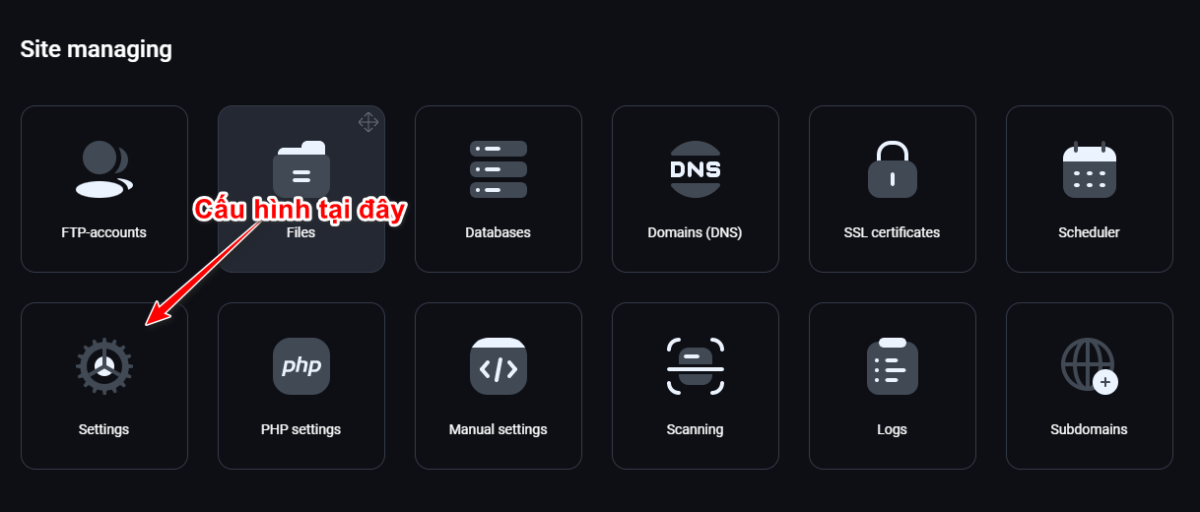
Next, select the tab PHP Settings
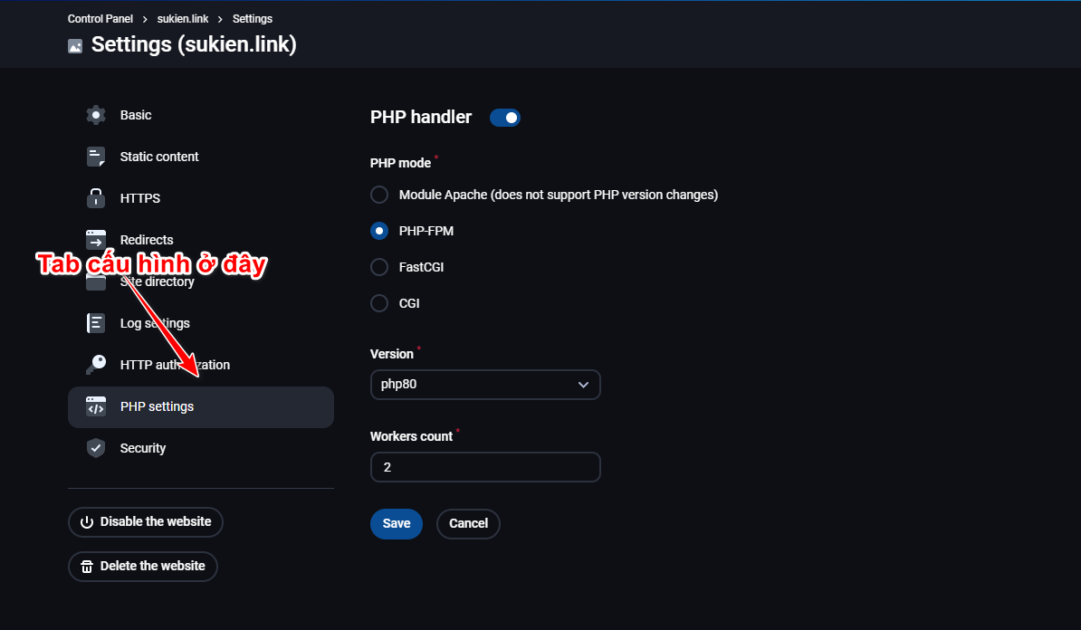
It is described as changing the web server, yet you end up in the PHP settings. The two are linked: each PHP mode corresponds to one type of web server. The PHP modes are as follows:
- Module Apache: This is the mode Apache only, in this mode the PHP version cannot be changed
- PHP-FPM: This mode corresponds to the web server: NGINX ONLY, in this mode you can select any PHP version you have installed on the panel (see the article on installing MultiPHP for Fastpanel). This is the fastest mode and uses the fewest resources. However, it cannot use .htaccess. It also comes with a worker limit feature (Workers count) to avoid maxing out the CPU. This setting defaults to 2 workers, but if you have more CPUs you can raise the number Workers = 2 x vCPU
- FastCGI: This mode corresponds to the web server: NGINX PROXY APACHE, using FastCGI. This mode is also very fast, but uses somewhat more RAM because it holds the FastCGI cache in memory. You can use .htaccess for additional website configuration and select PHP versions, but it has no worker-limit mode like PHP-FPM
- CGI: This is the mode Apache Mode CGI, similar to plain Apache but with a selectable PHP version.
We recommend using the mode PHP-FPM or FastCGI because it is fast and works well with most websites.
To change the PHP version, use the section Version in the image above.
Once changed, click Save. That is all there is to it.