
Every website now needs SSL installed to protect data, user information and customer information. In this guide we walk through installing and configuring SSL for a website on Fastpanel
SSL installation
To install SSL for a website, first log in to the panel and click the site card for the website you want to configure

Next, click SSL certificates to open SSL administration
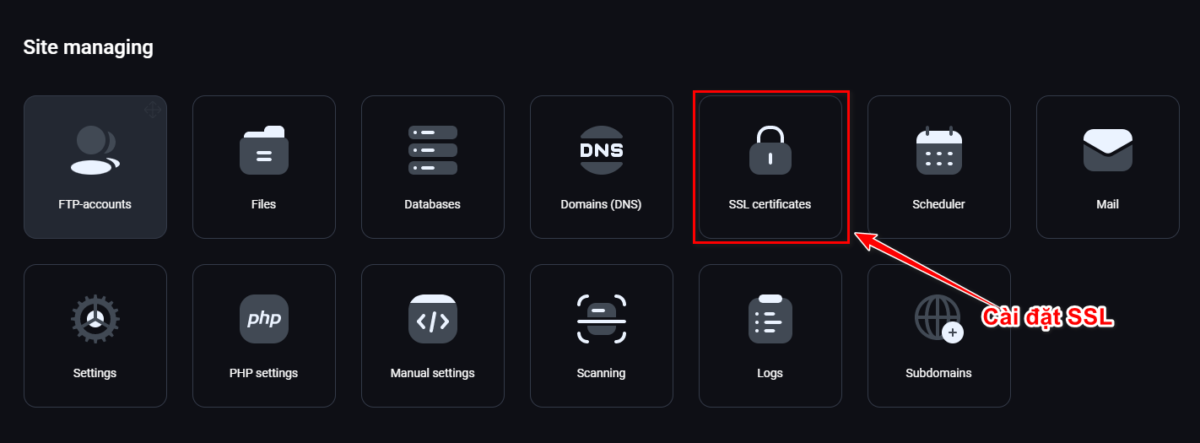
Then click the + sign to install a new SSL

The last simple step is to click Save and wait a moment
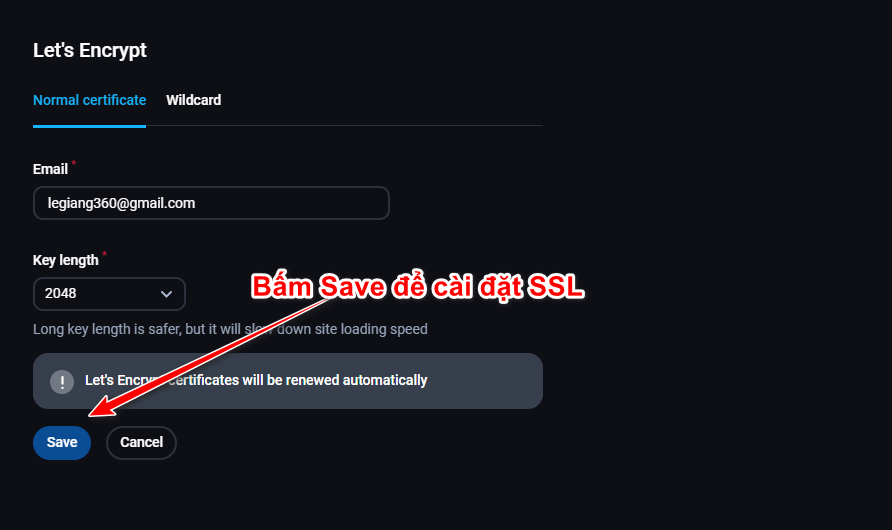
Parameter explanation:
- Email: notification email when there is a problem renewing the SSL
- Key length: the length of the security key. There are two options, 2048 and 4096. A longer key is more secure, but it slows the website down because decryption takes longer. 2048 is recommended and is sufficient
- Wildcard: this tab installs SSL for the main domain and all subdomains. It is not recommended, however, if you are not familiar with DNS configuration for the domain
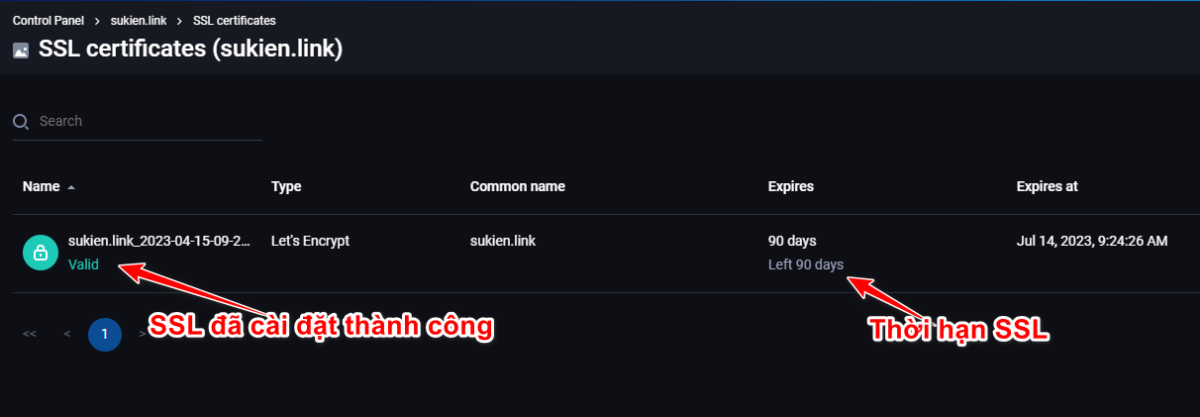
Once installation is complete, you will see the screen below
Configure SSL for a domain
Once SSL is installed, a little more configuration is needed to optimize it. To do this, open the website's Site card and then select Setting
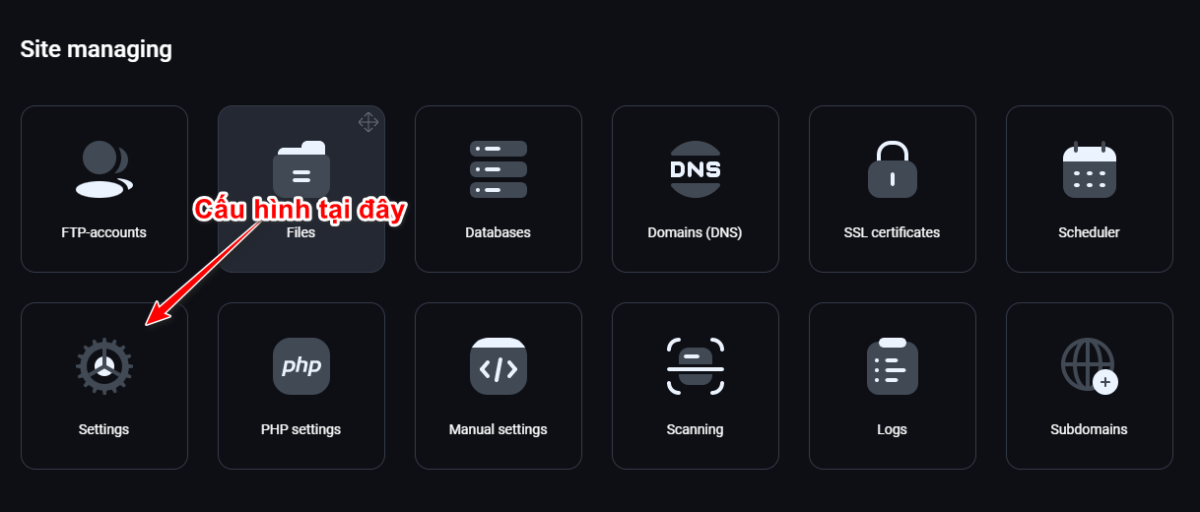
Then open the HTTPS tab, configure it and click SAVE to finish
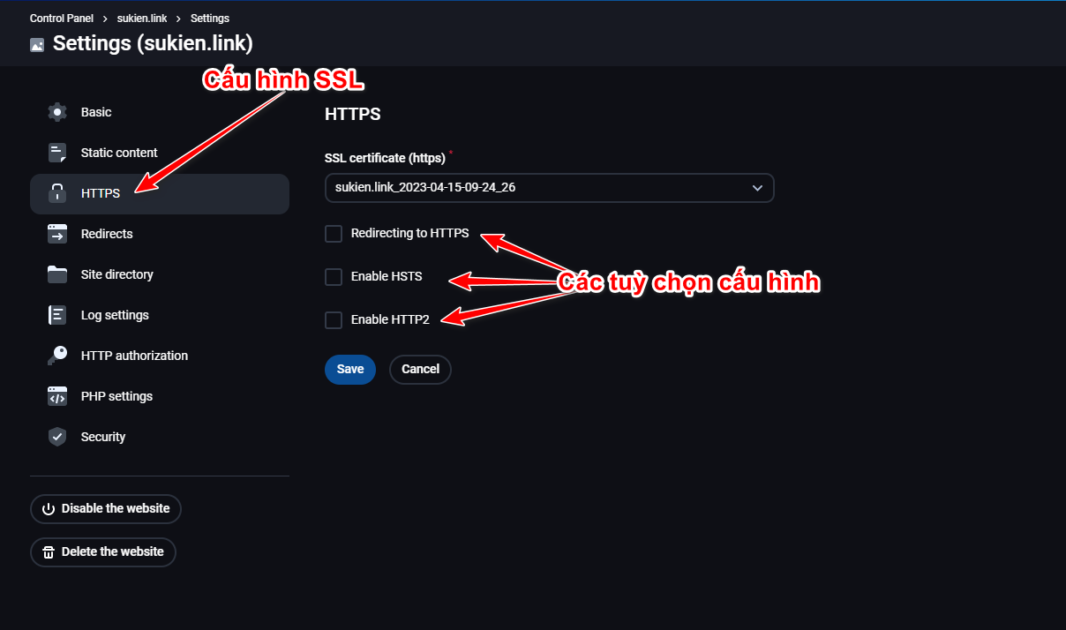
Parameter explanation:
- Redirecting to HTTPS: redirects http links to https
- Enable HSTS: for security, prevents loading links without HTTPS
- Enable HTTP2: turns on the HTTP/2 protocol
We recommend enabling all three options. For stability, also open Setting -> General in the website and change both site URLs to https
Good luck!