
1. What is MySQL root password reset?
Before resetting the MySQL root password, it helps to be clear on the basics. MySQL is a widely used database management system for both desktop software and web applications.
Like many other services, this database management system issues a password for the administrator. The MySQL root password is what unlocks the advanced capabilities of the database.
By default, MySQL does not require you to set a password in order to exercise root privileges. That can become a risk when managing business-critical databases, which is exactly why a password is needed as a protective measure.
That is also why passwords sometimes get forgotten. At that point, resetting the MySQL root password becomes essential.
2. How to recover the MySQL password on each operating system
In principle, resetting the MySQL root password follows a set procedure. First, you need to stop MySQL so the process can run cleanly. Next isstart with the “–skip-grant-tables” option.
This lets anyone connect to MySQL with no password and full privileges. Finally, it disables account-management statements such as ALTER USER and SET PASSWORD.
2.1 Recovering the MySQL password on Windows
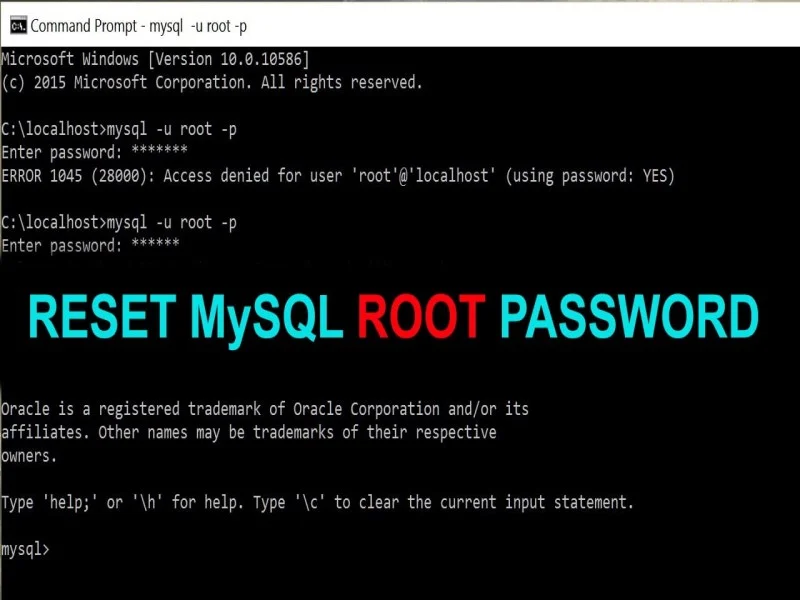
To begin resetting the MySQL root password on Windows, log in to the system as Administrator. Then stop the running MySQL server as follows:
- Go to Start => Control Panel.
- Go to Administrative Tools and then click Services.
- Find MySQL and go there to stop the running service.
In some other cases you can use Task Manager to force MySQL to stop. For the next step you will need a text editor such as Notepad. Then enter the following line of code exactly.
Type “ALTER USER ‘root’@’localhost’ IDENTIFIED BY ‘password’;”. Note thatchange “matkhau” to the password you want to use.
Next, save the file under the name MySQL-init.txt and put it on drive C or D so the path is easiest to reference. Then press Windows + R, type cmd and press Enter to run it. You will need to enter the following two lines of code in turn:
- Line 1: C:\> cd “C:\Program Files\MySQL\MySQL Server 5.7\bin”.
- Line 2: C:\> MySQLd –init-file=C:\\MySQL-init.txt.
If you installed MySQL elsewhere, change the path after cd to your install location. At this point you can log back in and enter the new password. Once you have reset the MySQL root password,delete the file C:\MySQL-init.txt.
2.2 Recovering the MySQL password on Linux
If you are using the operating systemLinux, the procedure differs slightly. Refer to the table below to reset the MySQL root password successfully.
| Steps | Guide |
| ✅Step 1 | As above, you need to log in before starting the MySQL root password reset. Alternatively, use the –user=MySQL option. |
| ✅Step 2 | At this point you need to locate the .pid file for the MySQL service. The system normally stores it in one of the following places: /var/lib/MySQL/, /var/run/MySQLd/, /usr/local/MySQL/data/. The file name begins with MySQLd or with your hostname, and the extension at the end is .pid. |
| ✅Step 3 | – Before resetting the MySQL root password, you need to stop the server with the following command: kill `cat /MySQL-data-directory/host_name.pid`.- The MySQL-data-directory/host_name.pid part should be replaced with the file found in the step above. It is important to enter the exact path here.- Also, rememberuse a single space before the parenthesis and do not use double quotes. |
| ✅Step 4 | – After successfully stopping the server, open a text editor. Enter the following: Sudo vim ALTER USER 'root'@'localhost' IDENTIFIED BY 'matkhaumoi'; – Replace “matkhaumoi” with the new password you want to reset the MySQL root password to. For best security, use a mix of lowercase, uppercase, and numeric characters. – Replace “localhost” with your system's appropriate hostname. |
| ✅Step 5 | Once created, the file must be saved at: home/me/MySQL-init. |
| ✅Step 6 | – Start the server and enter the new password into MySQL. The command line to change the password is as follows:MySQLd –init-file=/home/me/MySQL-init &- Depending on how you start the server, decide whether to add –defaults-file before init. |
| ✅Step 7 | Once the MySQL root password is reset, delete the file you saved in step 5. |
3. Requirements for resetting the MySQL password
To reset the MySQL root password successfully, you need to meet a few minimum requirements, as follows:
- Operations onMySQL Rootwill be performed on the default settings.
- You need to determine exactly which operating system is in use.
- Mustwith administrator privilegesin the MySQL database.
- Have a text editor ready, such as Notepad on Windows or Vim on Linux.
- Be comfortable accessing the command line interface.
Those are the basic prerequisites for resetting the MySQL root password smoothly. Otherwise, ask a specialist team familiar with this procedure for help.
The guide shared above is the key to help you out when you forget your Root Password. You can also contact the service provider's team for support directly. Recovering the password is not difficult if you follow every step in the guide. HiTechCloud believes you will resolve the issue quickly thanks toMySQL reset Root Passwordsuccessfully.